
What’s New in
SpeechMotion 5.00 Production
build
12101700 for Wednesday October 17, 2012
This build includes following
enhancement and changes:
·
Optimized Playback Option for VR Audio
·
Epic XML Integration
·
Voice Manager - Assign Jobs to VR (ZMM1) Enhancements and Site
Users
·
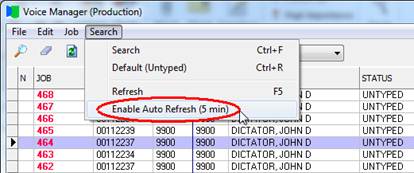
Voice Manager - Auto Refresh
·
Wrong Password Takes You Back to Password Field
Additional Fixes:
·
Tab Order for Purge Settings
·
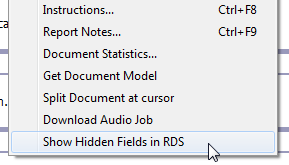
Show Hidden Fields in RDS option not working in AME
·
Errors Relating to CDA Addendum Workflows and MMODAL_CDA
Outbound Device
·
QA Feedback Option in Transcribe Module Removed
Optimized Playback option for VR Audio
When audio is played back on jobs that have gone through
voice recognition, the silent portions of the dictation are played back at
10x the normal speed. This playback optimization is enabled by default.
If the dictation was recorded at a very low volume, parts of the recording
may have been marked as silent regions unintentionally, making it difficult
to hear at 10x the speed.
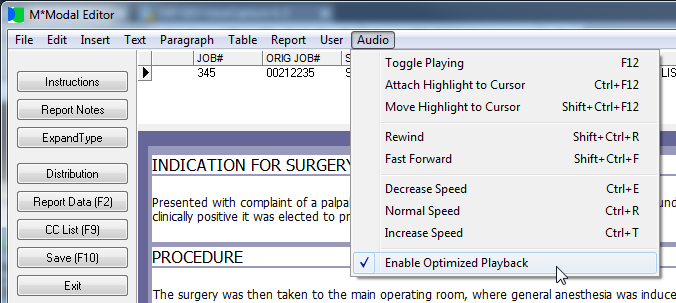
You can disable the playback optimization under the Audio menu.
When disabled, silent regions are played back at normal
speed.
Disabling Optimized Playback affects the current job. The next job loaded
will have Optimized Playback re-enabled.
Epic XML Integration
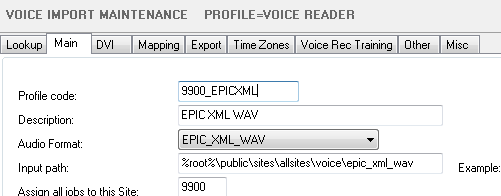
A new Audio Format was added to Voice Imports. This
format implements Epic XML voice types.
Gateway server software will also have to be updated so
it includes the voice type when configuring MTUPLOAD.
Voice Manager - Assign Jobs to VR (ZMM1) Enhancements and Site Users
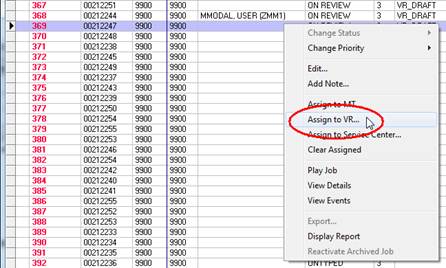
In Voice Manager, a new item
was added to the context menu (right-click) to assign jobs to VR.
Previously users had to find “MModal, User (ZMM1)” in the user list after
clicking “Assign to MT…”.
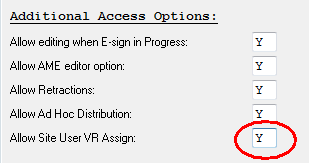
For site users, “Assign to
VR…” is disabled by default. You can enable this at the group level in:
User Groups->Misc->Additional Access Options”->Allow Site User VR
Assign.
Voice Manager – Auto Refresh
Under the search menu item users can enable 5 minute auto-refresh.
Wrong Password Takes You Back to Password Field
When logging into SpeechMotion if a password was typed
incorrectly, the input cursor remained on the last used field, which is
usually “Site code: “.
Changes were made to move the cursor to the “Password:”
field when passwords errors are returned.
Tab Order for Purge Settings
Tab order for input fields were corrected in the following two forms.
·
System->Purge
·
Sites->Purge
Show Hidden Fields in RDS Option Not Working in AME
This was fixed under the reports menu item.
Errors Relating to CDA Addendum Workflows and MMODAL_CDA Outbound Device
MTs were attempting to deliver the “blanked” addendum
portion of an Edit (replace) report action.
The procedure is considered redundant however, it was
producing an error in the distribution log because the SpeechMotion Header
information in the CDA file was incomplete.
Changes were made to address this.
QA Feedback Option in Transcribe Module Removed
The option to display QA Feedback from the Transcribe
Module was removed.
It was found to be causing issues with the grid in the
Transcribe Module.
This may be added back in the future once the issue is
resolved. For now, you will have to access the QA Feedback module directly
from the Main SpeechMotion client screen with the F4 key..

SpeechMotion Software Team
|