|
What’s New in SpeechMotion 5.20 Production
Release Summary This release includes additional enhancements to support service centers; voice only workflows and more distribution options for CCs. Enterprise Client: · Fixed: Report data screen “Patient name does not match…” · Changed: No longer necessary to click “GET DICTATION” when editing VR drafts · Changed: Service Center configurations · Changed: Report – Review Queue Summary (D204) · Added: Lookup actions for advanced report search dialog · Added: Report – Billing Summary by Report Type (M1032) · Added: Multi CC distribution methods · Added: Clone address records · Added: New report fields · Added: Voice only workflows Workflow Server: · Fixed: MTHL7PROC issues with single byte line delimiter · Fixed: “Strip off signature line” Device output option · Changed: MTHL7PROC saves bad messages as “xxxxx.bad” instead of deleting them · Added: Character space per tab option added for text/HL7 interfaces · Added: EPIC_WAV_XML option to swap patientid and subjectid values · Added: T05/T06 HL7 addendum notification message support
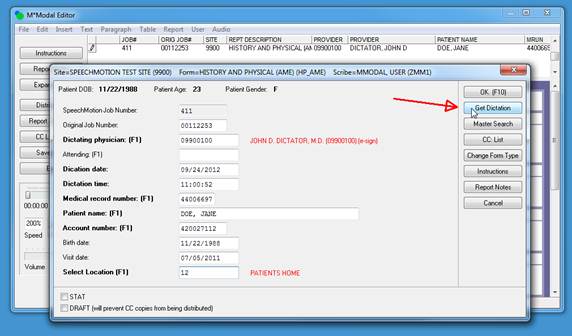
Release Details Fixed: Report data screen “Patient name does not match…”MPI field validation on the report data screen would incorrectly display a “Patient name does not match name in MPI file” error when multiple patients shared the same MRUN number. The false error was suppressed using ‘No check of MPI fields in RDS’ form option… this is no longer necessary MPI fields on the report data screen are now correctly validated when MPI data includes multiple MRUN values. Changed: No longer necessary to click “GET DICTATION” when editing VR draftsWhen editing VR drafts in the Review Edit module, users were required to click the “Get Dictation” button in order to copy dictation related fields to the report. This is no longer necessary. Dictation fields are automatically copied to the report data screen when editing VR drafts.
Changed: Service Center configurationsA number of changes were
made to how voice jobs can be assigned to service centers by users who have
service center assignment permissions.
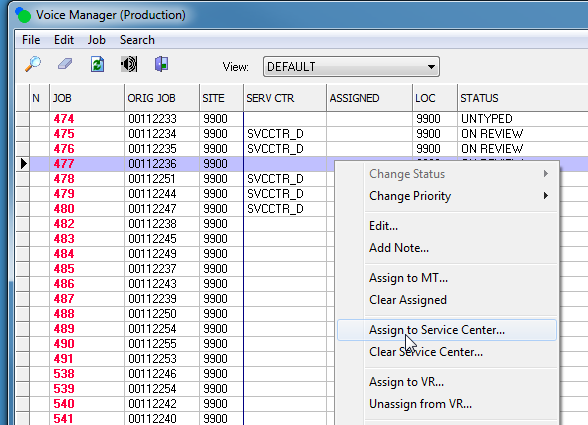
The voice manager can be used to assign and unassign jobs to service centers. However, the following rules are applied depending on the user profile.
EMPLOYEES · can see all jobs allowed by site config including service centers jobs · can assign jobs to service center · can clear jobs from service center
· Assign to service center o if service center is allowed in usergroup config o if job is not checked out o if job is not assigned to mt o if job is not already in a service center o if job is not already typed (must be untyped, untyped hold or vr_draft in review)
· Clear service center o if service center is allowed in usergroup config o if job is not checked out o if job is not assigned to mt o if job is not already in a service center o if job is not already typed (must be untyped, untyped hold or vr_draft in review)
· Assign MT o if job is not assigned to service center
· Clear Assign (MT) o if job is not assigned to service center
SITE USERS · can only see jobs associated with their site · can only see assign jobs associated with their site · can only clear assignments within their own site
· Assign to service center o same as employees
· Clear service center o same as employees
· Assign MT o same as employees
· Clear Assign (MT) o same as employees
SERVICE CENTER USERS · can only see and "Assign to MT" jobs associated with their site and service center · can be set up as site user or employee
· Assign to service center o cannot assign to service center (by not setting UserGroup->Other->Voice Manager->Allow Assign)
· Clear service center o cannot clear service center
· Assign MT o only service center MTs
· Clear Assign (MT) o only service center MTs
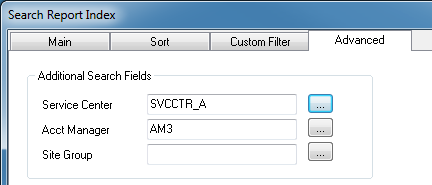
Changed: Report – Review Queue Summary (D204)Previously this report displayed results regardless of user site restrictions. It has been updated to prompt for specific site ranges. Added: Lookup actions for advanced report search dialogFor users with access to the advanced tab in report
search, lookup dialogs were added to Service Center, Acct Manager and Acct
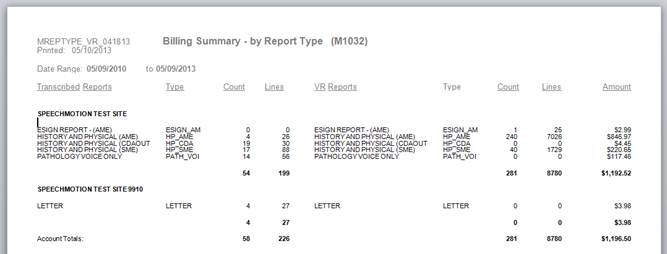
Group fields. Added: Report – Billing Summary by Report Type (M1032)This report displays billing summary by splitting transcribed jobs and VR jobs vertically.
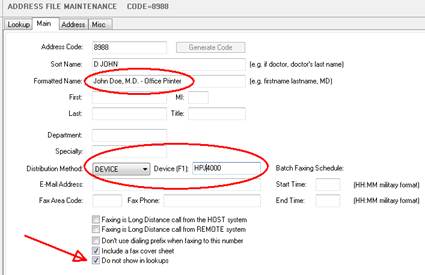
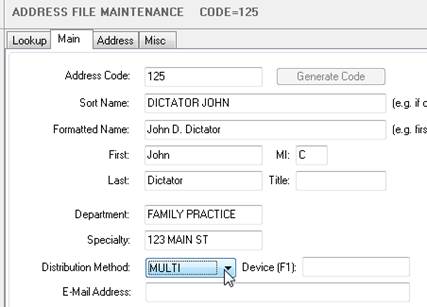
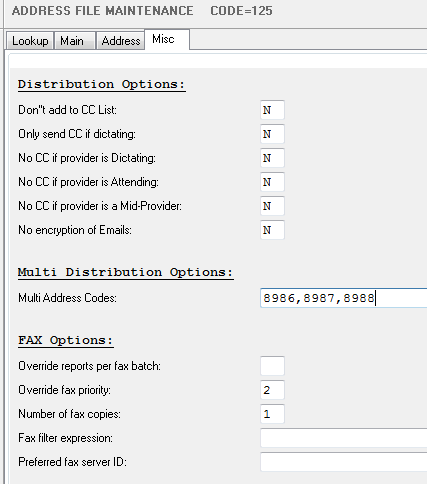
Added: Multi CC distribution methodsCC addresses can now be configured for multiple distribution outputs using the new distribution method MULTI. To set up multiple distributions for a CC, create an address record for each of the distribution outputs and configure them as usual by setting the distribution output to FAX with a FAX number, PRINT for default CC printer, or DEVICE for a specific device code config. These records would not be shown in a CC lookup screen. Lastly create the primary address record with its distribution method set to MULTI and list all the address codes corresponding to the multiple distribution outputs. For example, create the following records: · 1st distribution address record set to FAX · 2nd distribution address record set to another FAX · 3rd distribution address record set to a device (pointing to a remote printer) · Primary record set to MULTI with a list of address codes
For each of the
distribution address records, click “Do not show in lookups” so the record
does not show up in CC lookups.
Set distribution method to MULTI on the primary address record.
On the primary address record, set the list of address codes for each of the distribution address records you created earlier.
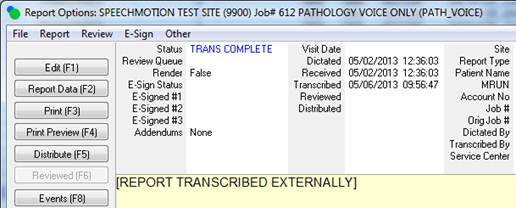
Added: Clone address recordsThe ability to clone address records has been added. You can clone by right clicking on an existing record in the Setup->Sites->Address maintenance screen and selecting “Clone” from the context menu. Added: New report fieldsThese new fields can be used on a report. · X.TR_VRE_DATE – returns trans date or first review date · X.TR_VRE_TIME – returns trans time or first review time · X.TR_VRE_DATETZ – returns trans date or first review date using site time zone · X.TR_VRE_TIMETZ – returns trans time or first review time using site time zone · X.MDPSIGDATETZ – returns e-sign date for mid-level provider using site time zone · X.MDPSIGTIMETZ – returns e-sign date for mid-level provider using site time zone · X.USER_LOGINID – returns user id of scribe or editor of VR report · X.USER_EMPNO – returns the empno of scribe or editor of VR report · X.USER_EXTRA1 – returns extra1 field of scribe or editor of VR report · X.USER_EXTRA2 – returns extra2 field of scribe or editor of VR report · X.ALL_CC_ADDRESSES5 – will insert all cc names and addresses with no "CC:" Added: Voice only workflowsClients who wish to use SpeechMotion to deliver voice jobs via Voice Client for transcription in an external application can do so using a Voice Client only workflow option. Voice jobs “Completed” in Voice Only workflow create blank
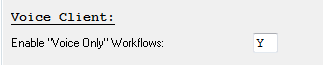
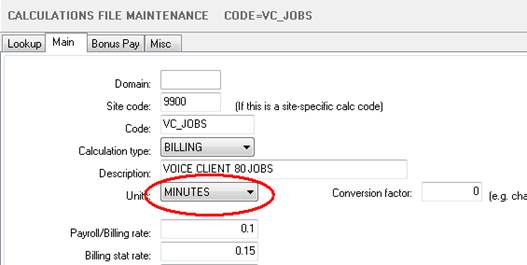
placeholder reports marked as “TRANSCRIBE COMPLETE”. Setting up Voice Only workflows: 1. Enable
Voice Only workflows in User->Misc 2. With
Voice Only workflows enabled, disable the users access to Transcribe and
Review Edit modules. If the user needs access to Transcribe or Review Edit
modules, do so in a separate user/login account. Do not enable Voice Only
workflows with Transcribe or Review Edit module access. 3. Set up
“Voice” type work pools specifically for Voice Only workflows and assign them
to the user. 4. Set up
Forms for each of the work types. For billing, set up an override calculation
code on the Forms->Stats tab for the work types that will transcribed
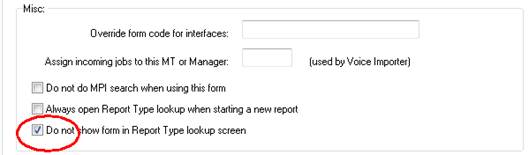
externally with Voice Only workflows. 5. Determine
if it’s necessary to hide Voice Only Forms from lookup screens and enable:
Using Voice Only workflows: 1. When
logging into Enterprise Client with Voice Only workflows enabled, the Voice
Client window remains open on startup and when loading new voice jobs into
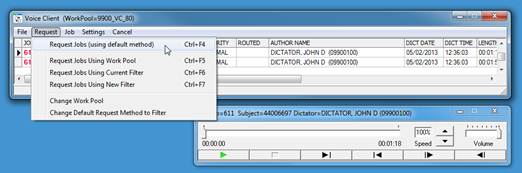
the player. 2. Request
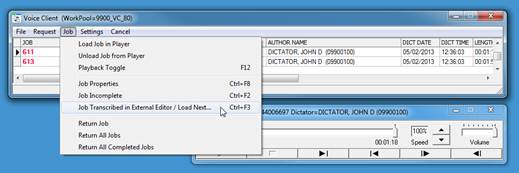
jobs using CTRL+F4 or by using the Request menu. 3. Complete
jobs using CTRL+F3 or by using the Job menu. 4. Since
Voice Only jobs are not typed in SpeechMotion, placeholder reports are
created in order to maintain job tracking and billing.
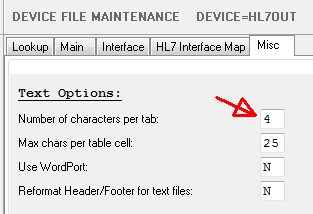
Workflow Server Fixed: MTHL7PROC issues with single byte line delimiterGateway servers configured to receive HL7 formatted text files from systems other than SpeechMotion would incorrectly process files with single byte line delimiters. This issue was resolved. Fixed: “Strip off signature line” Device output optionThis was not removing the Signature block from the document on devices that create text output. Changed: MTHL7PROC saves bad messages as “xxxxx.bad” instead of deleting themWhen Gateway servers are processing outbound result HL7 files, those containing errors were simply deleted… leaving no indication there was an issue. Changes were made to save these messages by renaming them to “xxxxx.bad”. Added: Character space per tab option added for text/HL7 interfacesPreviously the character space per tab in text based
device outputs was fixed to 3 characters. This is now configurable in
Devices->Misc. Added: EPIC_WAV_XML option to swap patientid and subjectid valuesAn option to switch the default patientid and subjectid field locations was added as an option for EPIC_WAV_XML voice import types. Added: T05/T06 HL7 addendum notification message supportSupport for HL7 outbound reports using MDM message types
T05 and T06 document addendum notification events. To enable these messages for addendums, use the following HL7 outbound macro command: #USEMDMADDENDUMNOTIFICATION
|
|
|