|
What’s New in SpeechMotion 5.20 Production
Release Summary This update resolves long standing issues regarding site users. Enterprise Client: · Changed: Voice Client updates requires administrative access to complete · Changed: Site users and site reviews · Changed: Site users and internal notes · Changed: Additional fields to MPI Orders lookup grid · Changed: Report: Reports on Site Review (R010D) · Changed: Report: Turnaround Category – By Doctor and Report Type (T007DS)
Enterprise Client Changed: Voice Client update requires administrative access to completeUsers running SpeechMotion will require elevated
permissions on their PCs in order to complete this update. Important facts about this update: · The update works much like an initial installation, where local administrative access is required to complete the registration of critical software components. · The registration occurs after the downloader completes the file transfers, after the user logs in, during the application startup. · This is a one-time update for SpeechMotion 5.2.
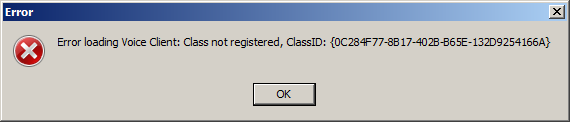
Most users will update automatically: For most users, no additional steps are required. The update will complete successfully. However, users in hospital environments using PCs with non-privileged access will receive an error when running SpeechMotion after the update.
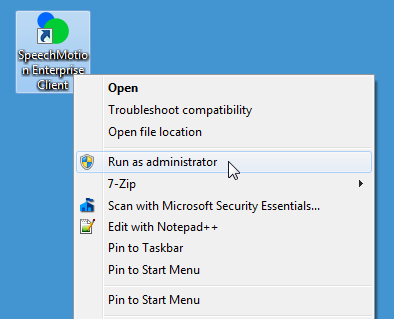
What to do if you have problems completing the SpeechMotion update: There are a few ways you can launch SpeechMotion with elevated privileges. · Right-click on the SpeechMotion icon and select “Run as administrator”.
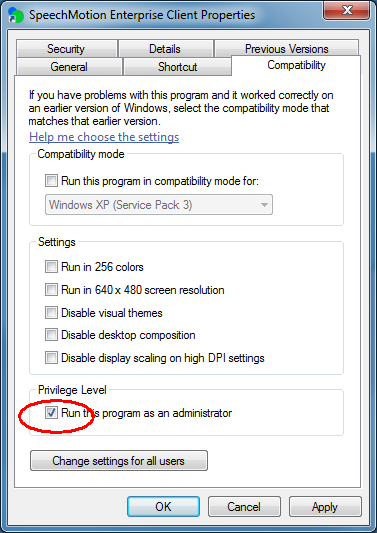
· If the option above is not available, right-click and select “Properties” and select the “Compatibility” tab. Check the option “Run this program as an administrator”. Click Apply and OK and try launching SpeechMotion again.
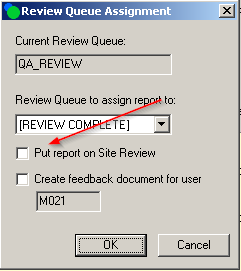
If neither of these options work, contact your systems administrator. Note: Future maintenance updates will not require re-registration. Changed: Site users and site reviewsUser configured as ‘Site Users’ and transcriptionist were unable to send reports to ‘Site Review’. Site users can now Put reports on Site Review when ending a job in Review Edit. This will only be available for Site users in a user group with the option ‘Override default site user mode’ set to Y.
Changed: Site users and internal notesInternal notes are now available to site users configured as transcriptionist. Previously a Site User could not see the contents of the internal notes. The internal notes tab was visible with the word “Unavailable” in the text box. Now the Internal Notes tab has been removed for a Site User in a User Group with the ‘Override default site user mode’ set to N. Previously a User or Site User could not see the contents of the QA/Feedback Notes if the user is in a User Group with the function ‘Review Reports’ unchecked. The QA/Feedback Notes tab was visible with the word Unavailable in the text box. Now the QA/Feedback Notes tab has been removed if the ‘Review Reports’ is not checked. Modified the bolding on the Notes or ReportNotes buttons in the MModal editor, SpeechMotion editor, Report Data Screen, Report Options screen, and the QA editor. Bolding of the button will now occur when: 1. There are Customer Notes. 2. There are Internal Notes and the user is a User or a Site User in a User Group with the ‘Override default site user mode’ set to Y. 3. There are QA/Feedback Notes and the user or site user is in a User Group with the function ‘Review Reports’ checked.
Changed: Additional fields to MPI Orders lookup gridThe following fields can now be seen on the MPI Orders lookup grid. · modality · examcode · ordering provider · examtime · extra1 · extra2 · extra3 Note: In order to see these new fields in, users will have
to reset the grid using keys: Changed: Report: Reports on Site Review (R010D)This report now includes a column indicating the service center associated with the report. Changed: Report: Turnaround Category – By Doctor and Report Type (T007DS)This report now includes a parameter to filter by specific Report Type.
|
|
|
|
|


SpeechMotion Software Team