Release notes for previous maintenance cycles can be found here:
http://download.speechmotion.com/download/default.aspx
|
What’s New in SpeechMotion
5.30 Release Summary This month we include new distribution workflow options and various fixes to split-job related issues.
Enterprise Client · Fixed: User Login/Logout not shown in Transcriptionist Activity Log (D001) · Fixed: Split jobs displaying no activity in Userlogs · Added: Site Turnaround Time Compliance – by Site (M012B) Workflow Server · Fixed: Multi-addendum reports and pre-sign distributions · Fixed: MPI Imports using DELIMITER formats · Added: Needs Review Distribution Workflow · Added: Sequencing Multiple Distributions · Added: Auto-CCs FAX filter options
Enterprise Client Fixed: User Login/Logout not shown in Transcriptionist
Activity Log (D001) Site user managers running activity logs for other users in the Reporting Module were unable to see login/logout activities. This has been fixed. Note: Activity can only be seen on dates after this maintenance update. Fixed: Split jobs displaying no activity in UserlogsUnder specific use, split jobs will produce a USERLOG record with blank activity instead of TRANSCRIBE. Line totals in Activity reports would not get summarized. Changes were made so that all splits have the correct activity codes so line counts can be generated. Added: Site Turnaround Time Compliance – by Site (M012B)This new report is identical to M012. Users can now select a range of sites and display results summarized by site code.
Workflow Server Fixed: Multi-addendum reports and pre-sign distributionsA rare issue with pre-sign distributions and addendums with no dictations. This has been resolved. Fixed: MPI Imports using DELIMITER formatsWhen using the site option 'Optional MPI field to make a key Unique' with the MTMPI import using the DELIMITER format, the MPI import does not update an existing record when the key fields match, it adds new entry. This has been fixed. Added: Needs Review Distribution WorkflowReports in an ON REVIEW status can now be distributed. The following example will illustrate how to configure distribution of ON REVIEW status reports. Example: Print a copy of a report using form DS if the account number is missing. 1.
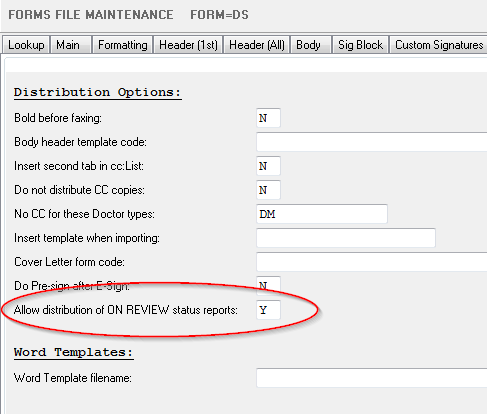
Configure the form for distribution of ON
REVIEW status reports. This setting in on the Misc tab of Form
File Maintenance. The setting is ‘All distribution of ON REVIEW status reports’ under the
‘Distribution Options’ grouping. This setting is also available on the
Misc tab of Site File Maintenance. If set to Y on Site File
Maintenance, than all forms for a site are enabled for distributing ON REVIEW status reports. 2.
Forms Misc tab:
3.
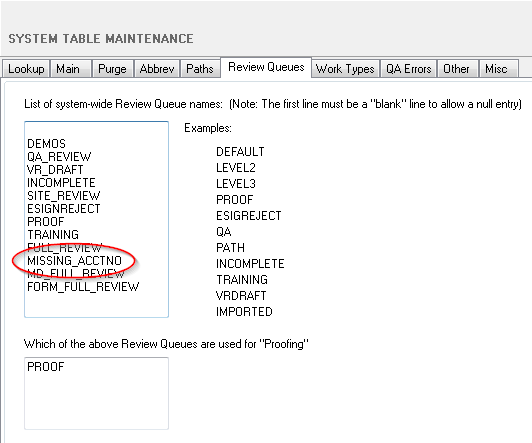
If required, create a new review queue. In this example case, it
is MISSING_ACCTNO.
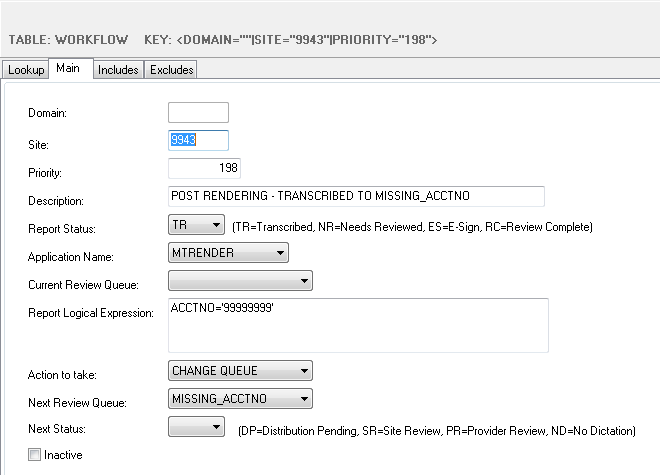
4. If required, create a new workflow to put reports into the new review queue. In this example case, it would be as follows.
5.
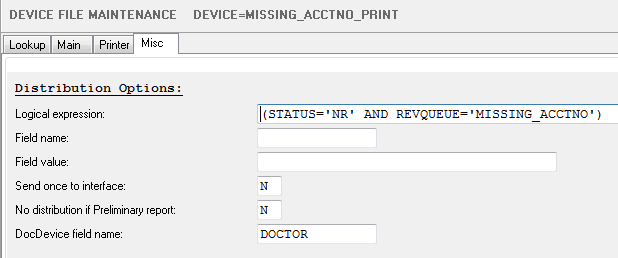
Create a device for distribution. To prevent all ON REVIEW status reports from
distributing, you should use some logic in the filter expression field to
limit distribution to this device. In the example case, we only want to
distribute reports that are missing the account number. In this
example, the distribution will only occur when the report status in ON REVIEW and the review queue is MISSING_ACCOUNT.
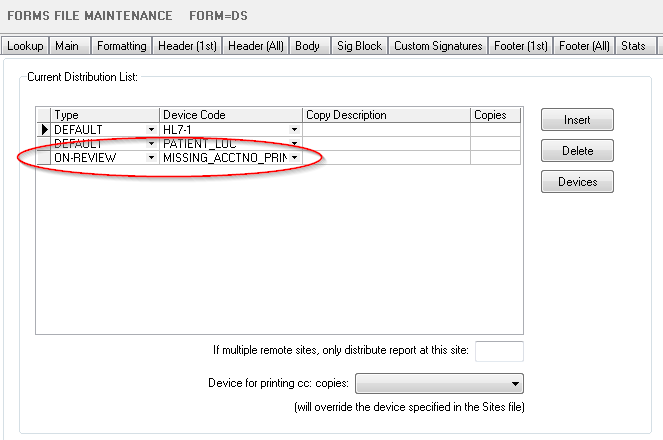
6.
On the form, go to the Distribution tab. A new option is
available for the distribution type called ON-REVIEW.
Add a new distribution selecting ON-REVIEW
as the type and select the new device you just created.
7. Add the new review queue to existing or newly created work pools as required to route this work to QA.
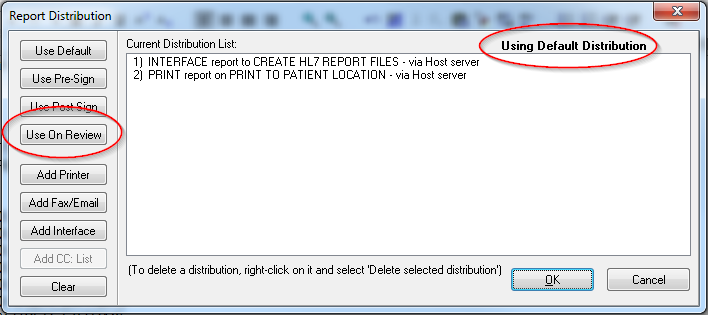
Changes to the Report Distribution screen to support ON REVIEW distribution. 1.
A new button has been added called Use
On Review. This button will only be available if the form or
site has been enabled for ON REVIEW distribution. 2.
A label now displays the distribution that is in use.
How the Current Distribution List is displayed on Report Distribution. All distribution logic with ON REVIEW distribution disabled is the same as it has always been. Distribution logic with ON REVIEW distribution enabled is a follows: ·
In the Transcribe module when Distribute is selected from the
AME or SpeechMotion editor: o The Current Distribution List will display the Use On Review distribution if the report has incomplete markers or missing demographics. o
The Current Distribution List will display the Use Default or Use Pre-Sign distributions if the
report does not have incomplete markers or missing demographics. ·
In the Review Edit module when Distribute is selected from the
AME or SpeechMotion editor: o
The Current Distribution List will display the Use Default or Use Pre-Sign distribution. We
are assuming that the reviewer is editing the report and fixing incomplete
markers and/or missing demographics so we want the distribution to be as if
neither of these are in the report. ·
In the Review Edit module or in Report Search module when
Distribute is select on the Report Options screen: o The Current Distribution List will display the Use On Review distribution if the report is ON REVIEW. o The Current Distribution List will display, as appropriate, the Use Default, Use Pre-Sign, and Use Post-Sign distributions when the report is not ON REVIEW.
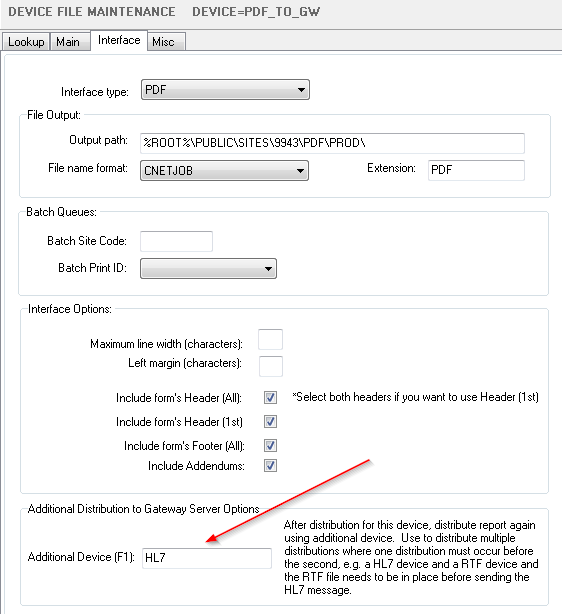
More detailed logging in Report events. Put on Review, Put on Site Review, Put on Provider Review, Put in No Dictation Status, and Put on Distribution Pending events now show the reason the report was put in a different status. If workflow is the reason the status or queue changed, it also shows the domain, site, and priority of the workflow that caused the report status or queue to change. Put in No Dictation Status and Put on Distribution Pending are new Added: Sequencing Multiple DistributionsSome distributions require paired outputs. For example: a HL7 message that points to a RTF file for distribution. The RTF needs to arrive before the HL7 message. Configuration will be in Device File Maintenance on the Interface tab. There is an new section labeled ‘Additional Distribution to Gateway Server Options’ and the new field is called ‘Additional Devices’. This new section will only be visible if the device is an Outbound Interface file to a Gateway Server.
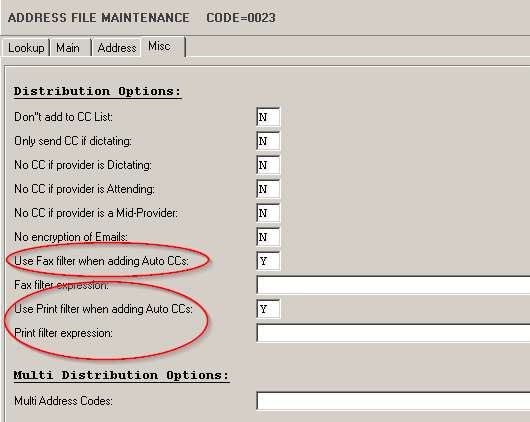
What will happen now is that distribution to the device, in this case PDF_TO_GW, will be processed first. When the distribution to the first device is processed successfully, the system will create a distribution to the device in the Additional Device field, in this case the HL7 device. Added: Auto-CCs FAX filter optionsUse Fax filter when adding Auto CCs The default behavior of the Fax filter when adding auto CCs to the CC list is to evaluate the Fax filter and if it is false the auto CC does not get added to the CC list. Changing this setting to N will cause SpeechMotion to skip the evaluation of the Fax filter when adding the auto CC to the CC List. Print filter expression – When the distribution method for the provider is set to PRINT or DEVICE, the report will be distributed to the device if the filter expression is true. Use Print filter when adding Auto CCs – This functions the same as the Use Fax filter field except is used with the Print filter expression.
|
|
|