Current and previous release notes can be found here:
http://download.speechmotion.com/installs/
|
What’s New in SpeechMotion
5.40 Release Summary
Enterprise Client · Fixed: Error when names include GRAVE ACCENT character · Fixed: Report Transcriptionist Activity Log (D001) scribe codes · Added: Report: Daily Dictation and Transcription Amounts (V009S) · Added: Improved ActiveX installations and support for IE 10, IE 11 browsers · Added: Enhanced support for images on E-Sign Portal/ActiveX · Changed: Minutes:Seconds added to Daily Dictation Log report · Changed: Moved distribution option to Distribution tab in Address file maintenance Workflow Server · Fixed: Blank TIME fields leaving spaces in document · Added: Enhanced configuration support for landscape modes · Added: Support for customer notes in Workflow logical expressions · Added: Custom demographic header of HPFColdFeed distributions · Added: Field: X.PAGECOUNT for HL7 outputs · Added: Multiple formatting codes on bracketed fields · Added: Additional formatting codes to use with bracketed fields · Added: Alternate fields for HL7 upload devices · Added: Report Import to Workflows/E-Sign/Distribution · Added: Defining multiple templates for body headers · Added: Form print preview · Added: RTF code editor, load/save file in Forms configurations · Added: Syntax styles and expression hints applied to Workpools editor · Added: Improved support for images displayed on E-Sign Portal for all browsers · Added: RTF image options to device configuration · Added: New Header & Footer margin configurations
Enterprise Client Fixed: Error when names include GRAVE ACCENT characterThis limitation was removed. Fixed: Report Transcriptionist Activity Log (D001) scribe codesThe character length of scribe code was increased. Added: Report: Daily Dictation and Transcription Amounts (V009S)This report displays the number of Dictation minutes vs Transcription on a given day. Added: Improved ActiveX installations and support for IE 10, IE 11 browsersActiveX installation now occurs in the browser without logging into E-Sign Portal. The E-Sign Portal splash pages are updated with additional instruction on browser configuration. Additional enhancements allow IE 10, IE 11 browsers to work without enabling ‘compatibility mode’. Added: Enhanced support for images on E-Sign Portal/ActiveXPreviously linked images were not supported when displaying reports in the ActiveX editor or when displayed using HTML output for non-IE browsers (Chrome, Firefox, Safari). This is no longer the case. Changed: Minutes:Seconds added to Daily Dictation Log reportMinute/second display format was added to the Daily Dictation Log report. Changed: Moved distribution option to Distribution tab in Address file maintenanceAddress file maintenance screen was changed. Distribution related options were moved to its own tab.
Workflow Server Fixed: Blank TIME fields leaving spaces in documentFixed a problem with the TIME format used in HL7 upload devices.
This was appending four spaces if the time field was blank. It should not be inserting any spaces. This is fixed.
Added a TIME1 format for HL7 upload devices.
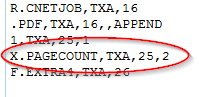
This formats the time to HL7 format and appends to a date field. Uses 000001 as the time if the time from the report time field is blank Added: Enhanced configuration support for landscape modesEnhanced landscape mode support was added in the Forms configuration screens. Added: Support for customer notes in Workflow logical expressionsAdded ability to use customer notes field (notes) in a Work Flow logical expressions. The Notes field in the reports table is a memo field and cannot be used in a logical expression. 'NOTES=NULL' or 'NOTES<>NULL' are new values that can be used in the Work Flow Report Logical Expression field to determine that there is not a customer note or that there is a customer note on a report. These only return whether there is a customer note or not. Checking for specific values in a customer note field cannot be done in a Work Flow logical expression. Added: Custom demographic header of HPFColdFeed distributionsOption for custom demographic header for HPFColdFeed distributions. This option, ‘Custom demographic header’, is on the Misc tab in Device File Maintenance. Added: Field: X.PAGECOUNT for HL7 outputsAdded the ability to put the number of pages of a PDF or RTF document in a field in a HL7 result message. X.PAGECOUNT field works with HL7_RTF and HL7_PDF interface type devices only.
Added: Multiple formatting codes on bracketed fieldsCan now use multiple Field format codes with bracketed fields If you need to apply multiple format codes to a field, it is now possible. The syntax is [R.FIELD:FORMAT1 FORMAT2 FORMAT3) where the formats are separated with spaces. Example: [R.PTNAME:UPPERCASE PADRIGHT(25)). This would first convert the value in R.PTNAME to upper case and then pad the field with spaces to 25 character. An original value of ‘Test, Patient’ would result in ‘TEST, PATIENT ‘. The order of the formats could be important as the formats will be applied to the field value starting with FORMAT1, FORMAT2, etc. Added: Additional formatting codes to use with bracketed fieldsAdded two new Field format codes ·
PadLeft - Returns a new string of a
specified length in which the beginning of the current string is padded with
spaces or with a specified character.
·
PadRight - Returns a new string of a
specified length in which the end of the current string is padded with spaces
or with a specified character.
These new syntaxes were added for readability. Converts the field to uppercase. Old syntax - :UC New syntax - :UPPERCASE Example: [R.PTNAME:UPPERCASE) will return ‘TEST, PATIENT’ when original value is ‘Test, Patient’
Converts the field to lowercase. Old syntax - :LC New syntax - :LOWERCASE Example: [R.PTNAME:LOWERCASE) will return ‘test, patient’ when original value is ‘Test, Patient’
Returns the left-most n characters of the field. Old syntax - :Lnn New syntax - :LEFT(n) or L(n) Example: [R.MRUN:LEFT(6)) will return ‘123456’ when original value is ‘12345678’
Returns the right-most n characters of the field. Old syntax - :Rnn New syntax - :RIGHT(n) or R(n) Example: [R.MRUN:RIGHT(6)) will return ‘345678’ when original value is ‘12345678’
Zero fills the field to length n. Old syntax – ZFnn New Syntax - :ZEROFILL(n) or ZF(n) Example: [R.MRUN:ZEROFILL(10)) will return ‘0012345678’ when original value is ‘12345678’
Replace character x in the field with character y. Old syntax - :RCxy New syntax - :REPLACE(x,y) or RC(x,y) Example: [R.PTNAME:REPLACE(T,B)) will return ‘BESB, PABIENB’ when original value is ‘TEST, PATIENT’
Returns a sub-field from a delimited field. Old syntax - :Fnd New syntax - :GETPIECE(n,d) or GP(n,d) n is the number of the sub-field to get and d is the delimiter character. If d is left blank as in GETPIECE(2), the space character will be the delimiter. Example: [R.LOCATION:GETPIECE(2,^) will return ‘200’ when original value is ‘MS^200^1’
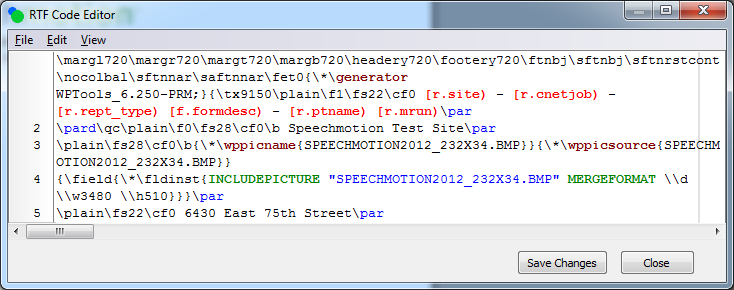
Strip out characters x, y, z from the field. Can strip out one or more characters. Old syntax - :Sxyz New syntax - :STRIP(x,y,z) or :S(x,y,z) Example: [R.PTNAME:STRIP(T,N)) will return ‘ES, PAIE’ when original value is ‘TEST, PATIENT’ Added: Alternate fields for HL7 upload devicesAdded two new fields for HL7 upload devices. The fields are X.ACCTNO_FROM_MPI0 and X.ACCTNO_FROM_MPI1 Both of these fields will insert the ACCTNO from the report record if the report record has a value in the ACCTNO field. If the report record does not have an ACCTNO, the system will try to get the ACCTNO from the MPI database table based on the MRUN and VISITDT from the report record. If either the MRUN and/or VISITDT fields from the report record are blank, the fields will return an empty string. If multiple entries with the same MRUNs and VISITDTs are found in the MPI table, X.ACCTNO_FROM_MPI0 will return an empty string. If multiple entries with the same MRUNs and VISITDTs are found in the MPI table, X.ACCTNO_FROM_MPI1 will return the ACCTNO of the first MPI record found. This may not be the correct ACCTNO. Added: Report Import to Workflows/E-Sign/DistributionSpeechMotion now supports external report importing with dynamic workflow assignments. External reports can be routed to E-Sign or to Review Edit queues. Added: Defining multiple templates for body headersThe Body header template code option on the Misc tab on Forms can now support using multiple templates. In some circumstances, you may want to distribute a report using different body header templates on distributions using different devices. This is now supported. This is done by adding a comma delimited list of devices with associated templates. The device name will be evaluated and if it is the device of the current distribution the associated template will be used. Usage: [DevCode1:TemplateCode1], [DevCode2:TemplateCode2],…, [DevCoden:TemplateCoden],[DefaultTemplateCode] Example one: In the above example, assume there is a device called HL7 and two templates called HL7_TEMPLATE and TEMPLATE1. The HL7_TEMPLATE will be applied to the report when the current output device is HL7 and TEMPLATE1 will be applied to the report for all other distributions. TEMPLATE1 will also be applied to the report on Print Preview and on the Report Options screen. The default template code should always be last in the list. This is because the list gets evaluated from the first item to the last and if the default is first that is what the system would use without evaluating the rest of the list. The current configurations with one template code in the body header template code field should continue to function as they always have. Added: Form print previewWhen configuring Forms, users can now use F5 key to display a preview of the Forms output. The preview uses page margin and header/footer content. Added: RTF code editor, load/save file in Forms configurationsRight-click on any of the Forms RTF editors and select “RTF Code Editor…”. The editor allows advanced inspection of RTF content with save/load capabilities.
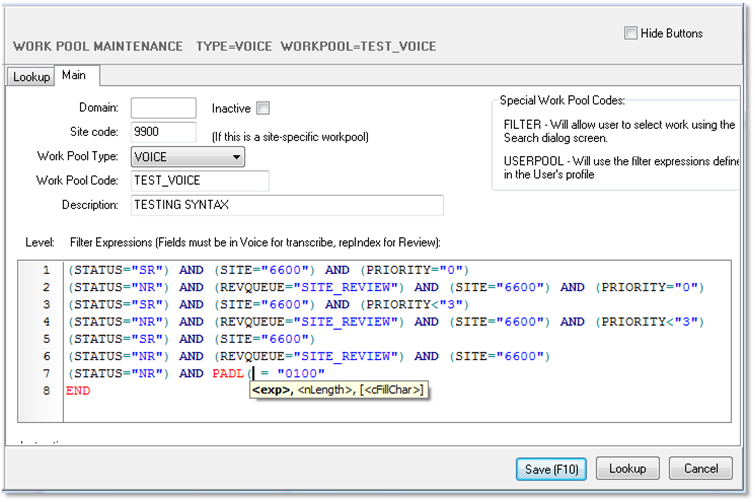
Added: Syntax styles and expression hints applied to Workpools editorFilter strings used to configure Workpools now have syntax highlights as well as filter expression hints.
Added: Improved support for images displayed on E-Sign Portal for all browsersConfigurations using linked-images have enhanced support for E-Sign Portal users on all browsers.
Added: RTF image options to device configurationLinked images are distributed with RTF files embedded by default. The option below keeps the images in linked format. The override images path is used as an alternate location for images. Normally these options should remain unchecked and blank. |
|
|
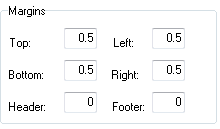
Added: New Header & Footer margin configurationsTwo additional properties were added to the Form margin configurations.
· Header – adjusts the space in inches between header text and page border · Footer – adjusts the space in inches between footer text and page border
|


Regards,

SpeechMotion Software Team