Notes for previous releases can be found here:
http://download.speechmotion.com/installs/
|
What’s New in SpeechMotion
5.50
Release Summary
Enterprise Client · Fixed: Issues with Jump Markers in table cells · Fixed: Issues with special character insert dialog · Fixed: Issues with 0 dictation length recorded after error in RDS · Fixed: Flashing caption in Voice Client window · Fixed: Issues in Expander maintenance · Added: Scribe column added to Batch Detail screen · Added: Soft hyphen and convert hyphen · Added: Additional Special characters and updated Hot List · Added: Background color options in editor · Added: Facility column added to Report Search results and default Voice View · Changed: Password Confirmation on document edit in Voice Manager · Changed: Improved dialog options for MS Excel and MS Word options Workflow Server · Fixed: Report B100S report shows asterisks in protected column · Fixed: Turnaround Time for Voice Only (dictation only) workflows · Fixed: Subject field for Voice Only jobs not included in Report record · Added: Background color option added to setup instructions tab · Added: Turnaround Time Detail (Priority Voice Only Jobs) – (D043) · Added: Additional MTSO branding options · Added: Report – Assigned to Site Review (ER002) · Added: Report – User Transcription Pool (T012) · Added: New menu options for document form screens · Added: Workpool routing fields (WPCAT) now available on RDS screens · Changed: Added Specialty column to report – Dictation Lag by Patient Dates (T015D) · Changed: VR Audio rates now support 16000 and 22000 kbps · Changed: DSS Voice files now convert to WAV at incoming rate · Fixed: Issues with multiple edit/replace addendum actions line billing
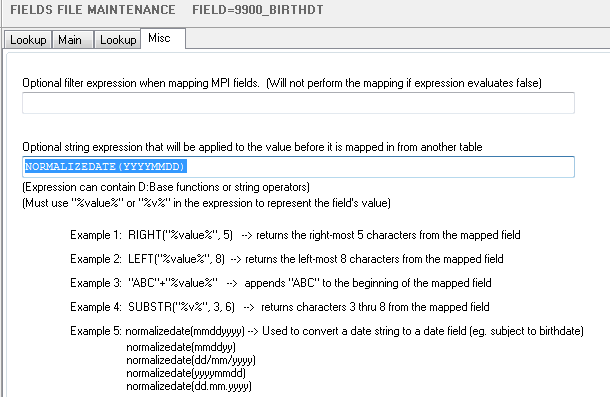
Enterprise Client Fixed: Issues with Jump Markers in table cellsJump Marker handling in the SpeechMotion editor. An issue with Jump Marker deletion has been corrected. On a line where there is only a Jump Marker, the line will no longer be left as hidden when the Jump Marker is removed. This is mostly seen on distributions to RTF or DOC devices. Converting old bookmark styles was improved to handle carets (^) as part of report fields. The Go to Next Jump Marker and Go to Previous Jump Marker procedures now search for the Jump Marker Character (^) and that the hidden style is on. Fixed: Issues with special character insert dialogThe special character insert dialog in the SpeechMotion editor. For some users, the dialog would not display on the correct monitor. Fixed: Issues with 0 dictation length recorded after error in RDSIn rare cases, errors in the RDS relating to bad date formatting would result in incorrect voice file information copied to the report and billing records. When mapping text fields to dates, you can now force the validation and formatting by using these new functions in the string expressions. If the input format is incorrect and warning is displayed.
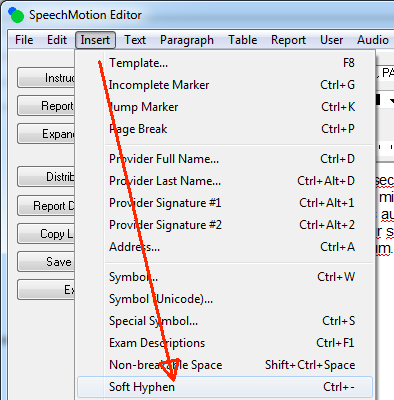
Fixed: Flashing caption in Voice Client windowIn rare cases, the caption in the main window would flash every 500 miliseconds. This has been fixed. Fixed: Issues in Expander maintenanceA number of issues were resolved. ‘Go to Next…’, ‘Go to Previous…’ jump marker now correctly skips carats (^) that are part of a report field. Corrected zoom in/out issues Inserting Expanders – In the SpeechMotion editor, an expander whose abbreviation begins with a number will only be inserted in lowercase. In the AnyModal editor, an expander that began with a number might be inserted in lowercase or in all uppercase. This has been changed so that an expander that begins with a number will be inserted in lowercase in the AnyModal editor. This was done so that the expanders work consistently in both editors. Fixed an issue when using the Search For field. The text displayed in the Expander Text tab was always showing the text of the previous expander and not the one found in the Search For field. Additional options: · Toggle ‘Hidden’ · ‘Go to Previous…’ jump marker · Background color selector Added: Scribe column added to Batch Detail screenMT name and scribe code is not displayed in a column on the Batch Detail screen. Note: To update your column layout use keys: [ctrl]+[shift]+[z] Added: Soft hyphen and convert hyphenIn the SpeechMotion editor. Soft hyphens force hyphenated words to stay together on the same line. You can insert soft hyphens with keys: [ctrl]+[-]
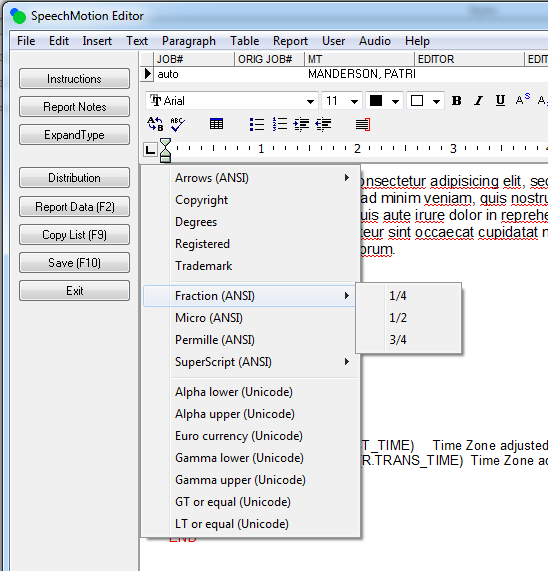
Added: Additional Special characters and updated Hot ListAdditional characters were added. The special list can be displayed with keys: [ctrl]+[s]
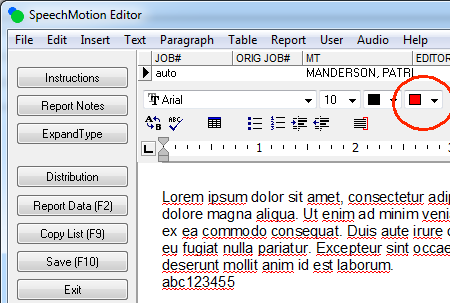
Added: Background color options in editorWhen the user ‘Allow change font…’ permissions are enabled, additional font options were added to control the background color.
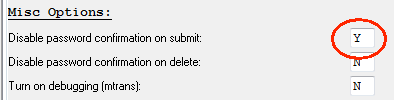
Added: Facility column added to Report Search results and default Voice ViewThe Facility column was added. Note: To update your column layout use keys: [ctrl]+[shift]+[z] Changed: Password Confirmation on document edit in Voice ManagerThe option to disable password confirmations was not applied to document changes in Voice Manager. This has been updated to use this option in the System setup on the misc tab.
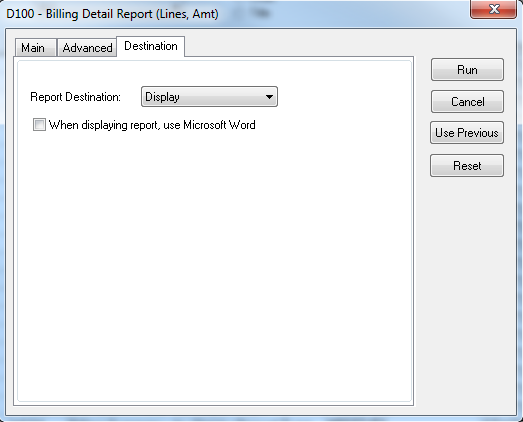
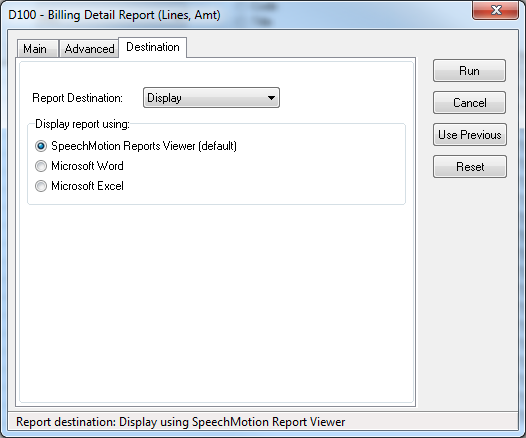
Changed: Improved dialog options for MS Excel and MS Word optionsChanges have been made on the Destination tab when running Management Reports. When Report Destination is set to Display, reports could be displayed in the SpeechMotion Report Viewer or Microsoft Word. They can now also be displayed in Microsoft Excel. Old Destination tab with Display as the Report Destination selected.
New Destination tab with Display as the Report Destination selected.
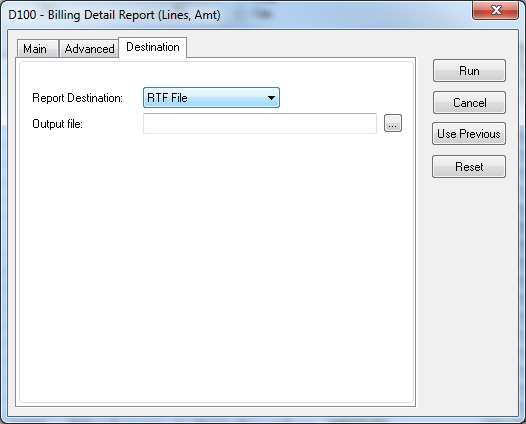
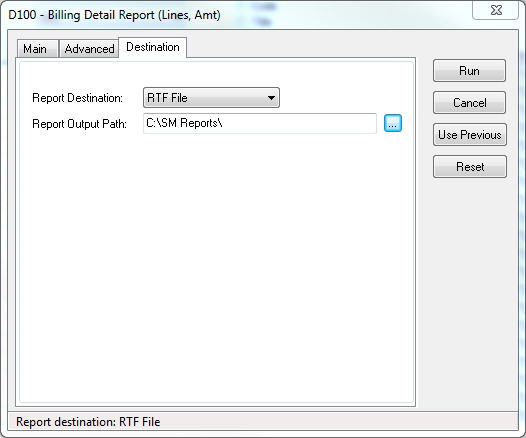
When Report Destination is set to RTF File, CSV File, or Worksheet File, you now just have to select an output path instead of a path and file name. The default path will be MyDocuments\SpeechMotion Mgnt Reports\. You no longer have to select a file name. The file name will be created automatically in this format: ReportCode_Date_Time.ext. Date format is YYMMDD. Time Format is HHmmss. Ext is rtf, csv, or xls when Report Destination is RTF File, CSV File, or Worksheet File respectively. Old Destination tab with RTF File, CSV File, or Worksheet File as the Report Destination selected.
New Destination tab with RTF File, CSV File, or Worksheet File as the Report Destination selected.
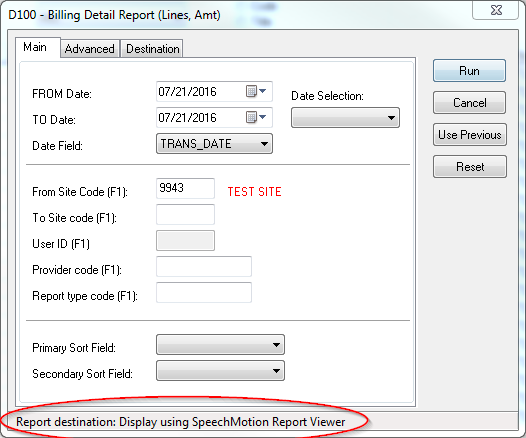
The Report Destination, Display report using, and the Report Output Path settings are all now being saved as user settings. So if a user changes the Report Destination to RTF File this setting will be used every time that user goes into the Reporting module and runs a report. Previously, the Report Destination would always be set to Display when a user would go into the Reporting module. There is a new status bar at the bottom of the Run Report window that shows the report destination. Since the destination is being saved, this is a quick reference to where the report will be output without having to open the Destination tab.
Fixed an issue when running a report with Printer selected as the Report Destination. This was causing a “Cannot match printer or port in control file.” error.
Workflow Server Fixed: Report B100S report shows asterisks in protected columnA number formatting script was displaying asterisks instead of a numberic value in rare circumstances. This has been resolved. Fixed: Turnaround Time for Voice Only (dictation only) workflowsPreviously Voice Only workflow never recorded turnaround time. The turnaround time fields are now being set when the MT completes a Voice Only job Report: D040 - Turnaround Time Detail (by Report Type) report now shows the TAT value from the Voice Only jobs in the TAT column on the report. Also, modified to show an average TAT for each report type. The transcription start date and time are now set to when the MT loads the job in the voice player for Voice Only jobs. Previously, these fields were set to the same values as the transcription end date and time. Fixed: Subject field for Voice Only jobs not included in Report recordFixed an issue where the value from the subject field in the voice record was not being copied into the configured field in the report record for Voice Only jobs. Added: Background color option added to setup instructions tabSetup screens for instructions now include background color options. Added: Turnaround Time Detail (Priority Voice Only Jobs) – (D043)Added a new report. D043 – Turnaround Time Detail (Priority Voice Only Jobs). This is a report showing the turnaround time for Voice Only Priority jobs. Added: Report – Assigned to Site Review (ER002)The following two reports were added to display documents that were assigned to a SITE REVIEW queue. · Assigned TO Site Review (ER002) · Summary to Site Review by Report Type (ER102) Added: Report – User Transcription Pool (T012)This report displays the user’s USERPOOL filter Added: New menu options for document form screens
Sites Maintenance in Setup · Added an icon for setting the background color on the toolbar in the Instructions tab. Forms Maintenance in Setup · Added an icon for setting the background color on the toolbar in the Instructions tab. · Changed the verbiage of the Edit menu item ‘Goto Jump Marker’ to ‘Go to Next Jump Marker’. · Added a new Edit menu item called ‘Go to Previous Jump Marker’. · When the RTF code is loaded on any of the RTF tabs, all old style bookmark jump markers are automatically being converted to the new style jump markers. · The ‘Data has been modified’ dialog will be displayed if you exit a form without first saving it whenever any old style jump markers are converted.
Providers Maintenance in Setup · Added an icon for setting the background color on the toolbar in the Instructions tab.
Template Maintenance in Setup · Changed the verbiage of the Edit menu item ‘Goto Bookmark’ to ‘Go to Next Jump Marker’. · Added a new Edit menu item called ‘Go to Previous Jump Marker’. · Added a new Text menu item called ‘Hidden’. · When the RTF code is loaded on the Text tab, all old style bookmark jump markers are automatically being converted to the new style jump markers. · The ‘Data has been modified’ dialog will be displayed if you exit a form without first saving it whenever any old style jump markers are converted. Added: Workpool routing fields (WPCAT) now available on RDS screensField maintenance now includes workpool routing categories for display on the RDS. Fields: WPCAT1, WPCAT2, WPCAT3, WPCAT4, WPCAT5. Changed: Added Specialty column to report – Dictation Lag by Patient Dates (T015D)The provider specialty field was added. Changed: VR Audio rates now support 16000 and 22000 kbpsPreviously audio rates other than 8000 and 11025 were rejected from VR. VR Service now accept 16000 and 22 kbps audio. Changed: DSS Voice files now convert to WAV at incoming ratePreviously DSS files were down-converted to 8000 kbps WAV files regardless of the incoming DSS file sample rate. Files are now converted to the same rate to maintain the best audio quality for VR recognizers.
|
|
|
|
|

Regards,

SpeechMotion Software Team