|

What’s New in SpeechMotion 5.50
SpeechMotion 5.50 build 17101800 for October 18, 2017
Enterprise Client
- Fixed:
Errors when addendums applied with GROSS LINES calculations
- Fixed:
Highlight and player starts at 2nd or 3rd word on
AME document load
Workflow
Server
- Fixed:
NoNumberProps option for MSWord and continued numbered lists
- Fixed:
Template file maintenance – I/O error 6 when using Insert Field button
- Added:
MP3 file support for Voice Import
- Added:
Minimum Draft Quality override for Doctors
- Added:
New field mapping using filenames for Voice Import
- Added:
New X.CC field for HL7 Distributions
- Added:
Custom page break format for Print File HL7 formats
- Added: Post rendering
content replacement feature
Fixed: Errors when addendums applied with GROSS LINES calculations
Applying addendums when the target form includes a GROSS
LINE calculation generated errors.
This has been resolved.
Fixed: Highlight and player starts at 2nd or 3rd
word on AME document load
When loading drafts, the highlight would not start at the
beginning of the document. Instead it would position 300+ milliseconds
forward. This issue appeared in AME v7.137
This has been resolved.
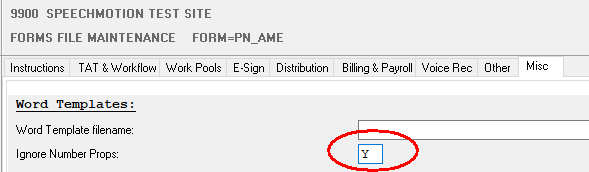
Fixed: NoNumberProps option for MSWord and continued numbered lists
This forms option converts numbered lists to plain text
when using MSWord outputs. This avoids the default behavior of continued
numbering across paragraphs.
Fixed: Template file maintenance – I/O error 6 when using Insert Field
button
Fixed an ‘I/O Error 6’ error when selecting the Insert
Field button on the Text tab in Template File Maintenance.
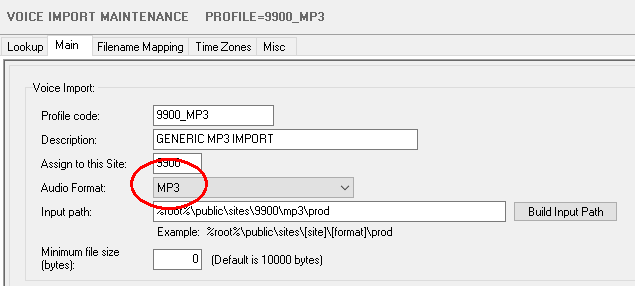
Added: MP3 file support for Voice Import
MP3 format is now supported in Voice Import.
Demographic information cannot be read from within the mp3
file headers fields can be mapped from the filename. See “Filename Mapping”
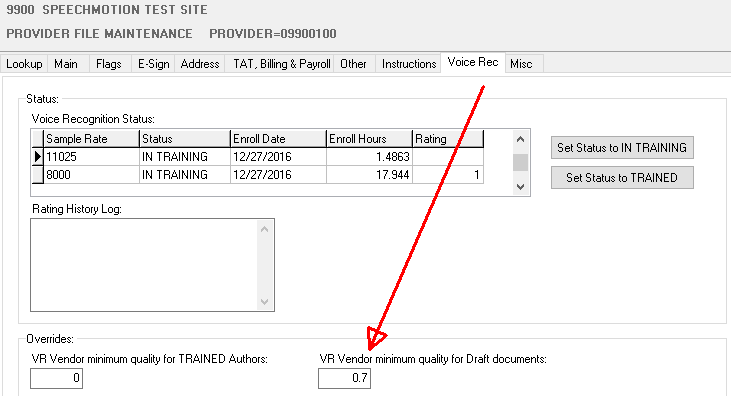
Added: Minimum Draft Quality override for Doctors
Minimum draft quality is a global setting that rejects a
draft document if its predicted quality of a draft is low. In these cases the
transcriptionist is forced to type from a blank. In rare cases, authors with
good trained scored may periodically generate a low draft score. Adjusting
the override for the Doctor to an even lower minimum would allow drafts to
pass regardless.
Added: New field mapping using filenames for Voice Import
Filenames can be parsed for mapping. A custom delimiter
can be set to extract multiple fields.
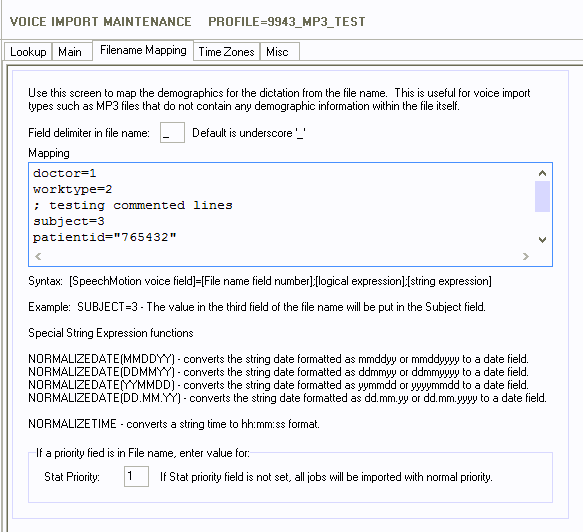
This tab has fields to set the field delimiter in the file
name, the value for stat priority if priority is in the file name, and for
mapping.
The default field delimiter is the underscore “_”
character.
Mapping syntax is: [SpeechMotion voice field]=[File name
field number];[logical expression];[string expression]
Mapping can support commented lines. The line must
start with a semi-colon “;”. See line 3 in example mapping.
Mapping can support literal values. In example
mapping below, the value 765432 will be put in the patientid field.
There are some special string expressions for date and
time fields. These are:
- Normalizedate(mmddyy) – converts values in the formats mmddyy or mmddyyyy
to a localized date string (mm/dd/yyyy in United States)
- Normalizedate(ddmmyy) – converts values in the formats ddmmyy or
ddmmyyyy to a localized date string (mm/dd/yyyy in United States)
- Normalizedate(yymmdd) – converts values in the formats yymmdd or
yyyymmdd to a localized date string (mm/dd/yyyy in United States)
- Normalizedate(dd.mm.yy) – converts values in the formats dd.mm.yy or
dd.mm.yyyy to a localized date string (mm/dd/yyyy in United States)
- Normalizetime – converts time formats to a localized time
string (hh:mm:ss)
You will probably always have to use these normalizedate and normalizetime functions to get dates
and times from the file name as windows does not allow forward slashes or
colons in file names.
Example mapping:
doctor=1
worktype=2
; testing
commented lines
subject=3
patientid="765432"
priority=4
dict_date=6;;normalizedate(mmddyy)
dict_time=7;;normalizetime
Example file name:
A01_4_123456_5_9943_08212017_110545.MP3
Using the example file name and example mapping above, the
values of:
Doctor will
be A01.
Worktype
will be 4.
Subject
will be 123456.
Patientid
will be 765432.
Priority
will be normal. Because it is not the value 1 as shown in the Filename
mapping screen shot above.
Dict_date
will be 08/21/2017.
Dict_time
will be 11:05:45.
Dict_date
and dict_time will be the file
date and time if the values are not in the file name.
Added: New X.CC field for HL7 Distributions
Added two new fields for sending CC physicians in a HL7
distribution.
Fields X.CC3
and X.CC3X.
Both string together address codes and names (parsed in
HL7 format) using the repeating char (~). The name component fields get
the lastname, firstname, middleinit,
and title from corresponding fields in the address table instead of parsing
the formatted name field. If the physician in not found in the Address
table, the name components are parsed from the full name entered in the CC
List.
The X.CC3X
field also does not include the doctor,
attdr, and mdprovider in the cc list in the HL7 distribution.
The fields will typically be used in the OBR.28 field of in the TXA.23 field.
Added: Custom page break format for Print File HL7 formats
A post rendering custom page break format when using the
Print File format in a device.
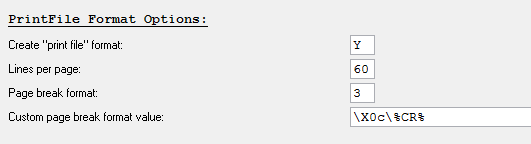
To use: set Page Break format to 3 and Custom page break format
value to the value needed by the interface. Use %CR% if you need carriage returns in the format.
The %CR% must be in uppercase.
Added: Post rendering content replacement feature
Certain special characters and symbols cannot be typed in
the AnyModel Editor. Some customers require some of these special
characters and symbols in their reports. Content Replacement will allow
a MT to type tags or short character strings in the AME and these tags or
character strings will be converted to the special characters and symbols in
the RTF document during the rendering process.
Content Replacement is handled by the MTRender application
on the application server. Content Replacement is done after a document
has been rendered from a CDA document to a RTF document. MTRender
searches the RTF document for the search strings configured in a Content
Replacement profile an replaces all instances of the found text with the
corresponding replacement values from the Content Replacement profile.
Configuration is done in two parts. First one or
more Content Replacement profiles need to be created. Then a Content
Replacement profile(s) needs to be assigned to all forms requiring content
replacement.
In Setup, a new Context Replace button has been
added.
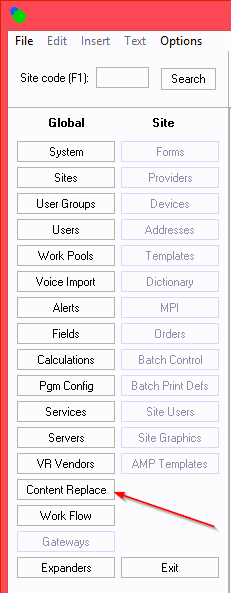
User access to Content Replace is controlled in User Group
on the Setup and Config tab.
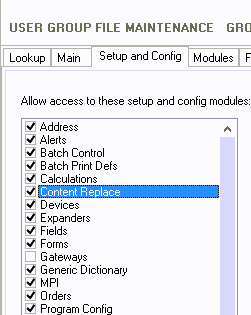
Check Content Replace to give the User Group access to the
Content Replace button in Setup.
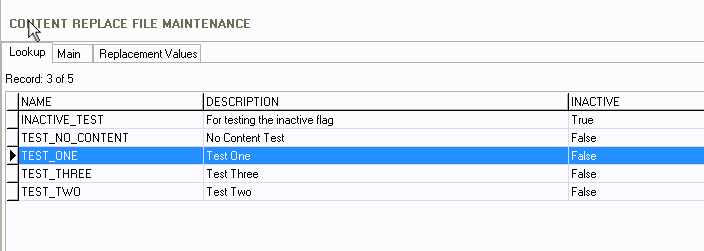
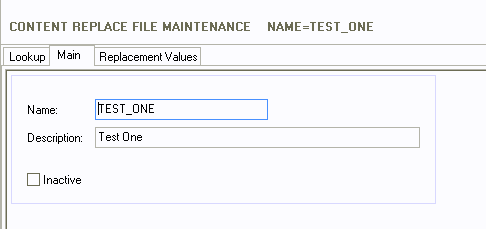
The new Content Replace File Maintenance has three tabs:
Lookup, Main, and Replacement Values.
The Lookup tab is just a list off all of the profiles.
The Main tab is where you give the profile a name and
description. Also, the profile can be marked as Inactive.
The Replacement Values tab is where the configuration of
the search strings and replacement values are done.
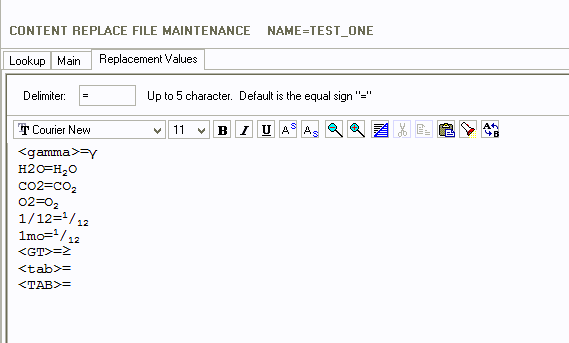
The search strings and replacement values are just in a
formatted list.
The format is: <search
string><delimiter><replacement value>
The default delimiter is the equal sign ‘=’. This
can be changed to any set of characters up to five characters. One
reason for changing the delimiter is if it is used in any of the search
strings.
In the above example, the text <gamma> is replaced with the gamma symbol –
γ. H2O is replaced with H2O.
It makes no difference about the font or font size used in
these configurations. The font and font size of the replacement value
in the RTF document will be the font and font size of where the replacement
value was inserted in the document. This is also true of color and
background color, the replacement value will be the color and background
color of where it was inserted in the document.
Searches are case sensitive. In the above example, <gamma> would be replaced with
the gamma symbol but <Gamma>
or <GAMMA> would not.
Once a Content Replace profile is configured, it must now
be configured on any form that requires content replacement.
In Forms File Maintenance, go to the Voice Rec tab.
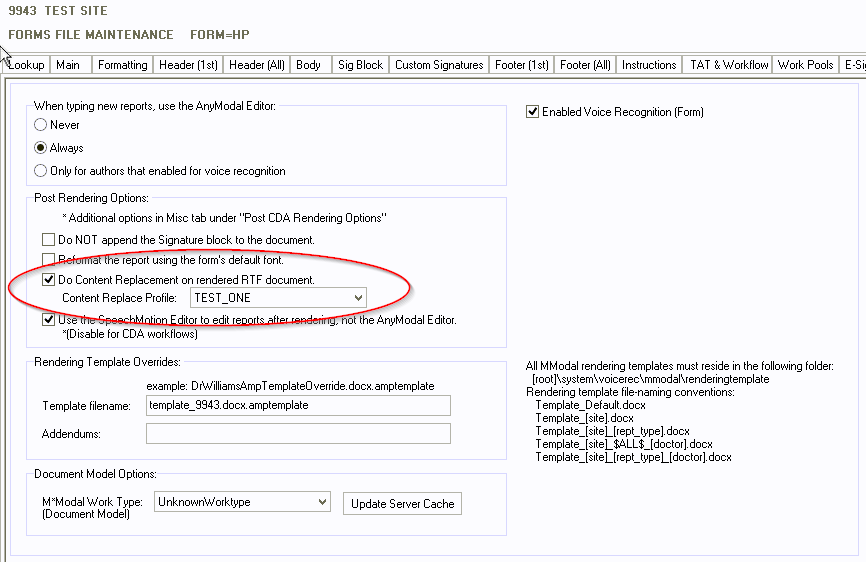
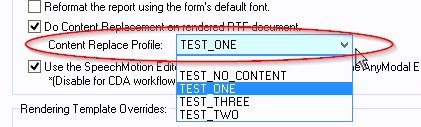
Select the check box ‘Do Content Replacement on rendered
Rtf document’ and select the appropriate ‘Content Replace Profile’ from the
pull down list.
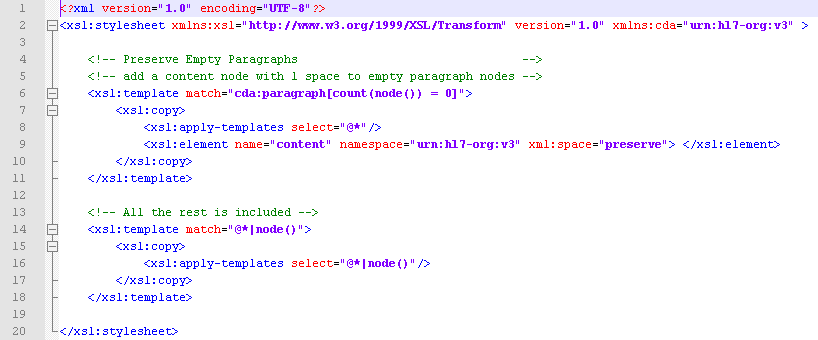
Added: Pre/post rendering stylesheets
This supports new options available to AnyModal Publishing
API when rendering AME documents. Special xml stylesheets can be applied to
the final document before or after the rendering takes place (XML or RTF).
Currently the PreProcessStylesheet.xsl
option is working globally for ATX but can work per site/form by request.
To apply stylesheets, drop one or both of the following
files in the main MTCDA2WORD.EXE rendering path. The files must contain valid
XSL markup to work.
PreProcessStylesheet.xsl
PostProcessStylesheet.xsl
See MModal support for guidance on designing stylesheets
for AMP.
Regards,

SpeechMotion
Software Team
www.speechmotion.com
|