|

What’s New in SpeechMotion 5.50
SpeechMotion 5.50 build 19032000 for March 20, 2019
Enterprise Client
- Fixed:
Default workpool selection in transcription module
- Fixed:
Clearing birth dates from RDS screen
- Fixed:
Insert Jumpmarker in Expander maintenance screen
- Changed:
CDA/XML editor – Enhanced undo
- Changed:
CDA/XML editor – Readonly incomplete markers
- Changed:
CDA/XML editor – cut/copy/paste operations
- Changed:
CDA/XML QA/Review and audio playback
- Changed:
CDA/XML editor – Optimized playback
- Changed:
CDA/XML editor – spaces after colon/period
- Added:
Stedman’s Medical Dictionary 2019 to spell checkers
- Added:
CDA/XML show paragraph marks
- Added:
CDA/XML editor color options
- Added:
CDA/XML editor document statistics
- Added:
E-Sign Portal export document to PDF/RTF
Workflow
Server
- Fixed:
MTVIMP DSS file import and minfilesize
- Fixed:
Setup file maintenance and unintentional changes with mouse wheel
- Fixed:
Setup providers “Create Site User Record”
- Fixed:
Issues when editing XML Templates
- Fixed:
Form Type Changes (EF001)
- Changed:
Instructions and notes added to Calculations maintenance screen
- Added:
new HL7_PDF output device macros
- Added:
New MTUTILS recalculate options
Fixed: Default workpool selection in transcription module
Fixed an issue where the Select Work Pool combo box does
not always show the default work pool. This issue would occur when a
user changed the selected work pool and then exited the Transcribe module.
The default work pool would not be in the combo box list when the user went
back into the Transcribe module.
Fixed: Clearing birth dates from RDS screen
Clearing a date on the RDS would not clear out the date on
the record when editing a transcribed document.
This has been fixed
Fixed: Insert Jump Marker in Expander maintenance screen
Jump markers can now be inserted into Expander maintenance
Cda/Xml template using [ctrl]+[k].
Changed: CDA/XML editor – Enhanced undo
Undo operations now correctly group multiple fine-grained
edits when expansions, jump markers, incomplete markers and other composite
edits are made.
Changed: CDA/XML editor – Readonly incomplete markers
Incomplete markers now only require a single [delete] or
[backspace] to remove. Editing a marker is no longer possible and markers are
auto-inserted around word boundaries.
Changed: CDA/XML editor – cut/copy/paste operations
Editing operations are now Text Region aware when cut/copy
and paste is applied.
Changed: CDA/XML QA/Review and audio playback
In QA/Review workflows that include editing previously
transcribed documents in the CDA/XML editor – the audio playback now includes
a moving highlight.
Changed: CDA/XML editor – Optimized playback options
Previously, optimized playback would enable on each new
document – resetting after disabled from the prior job. Now the option
remains disabled from job to job until the user enables it again.
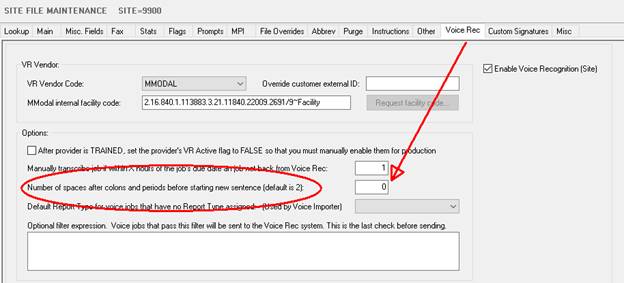
Changed: CDA/XML editor – spaces after colon/period
The number of spaces after a period is enforced in the
Cda/Xml editor as a site option. This option also affects the spaces after
colon.
Added: Stedman’s Medical Dictionary 2019 to spell checkers
Spellcheck engines were updated with the 2019 edition of
Stedman’s Medical dictionary.
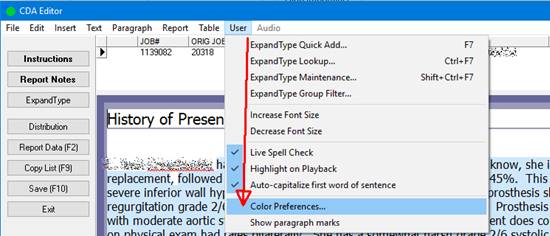
Added: CDA/XML show paragraph marks
Users can now enable the display of paragraph marks in the
editor.
This can be toggled from the main menu under User options.

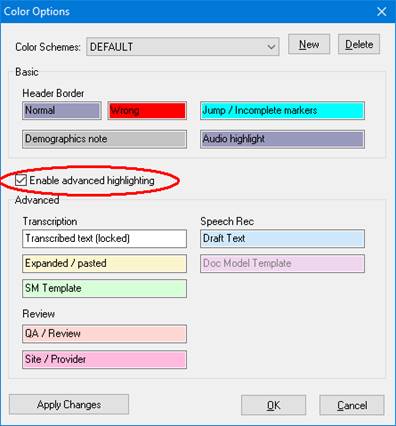
Added: CDA/XML editor color options
Users can customized the colors displayed when editing in
Cda/Xml. Additional options are available to colorize other text regions such
as voice recognized draft text and templates.
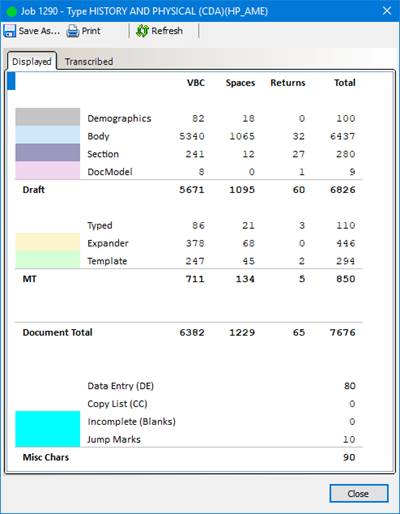
Added: CDA/XML editor document statistics
When editing CDA/XML documents – the Document Statistics
menu option displays a detailed character count.
Note: When saving a CDA/XML
document – the editor may pause while the document is being scanned for
characters. This may be more noticeable on slower PCs.
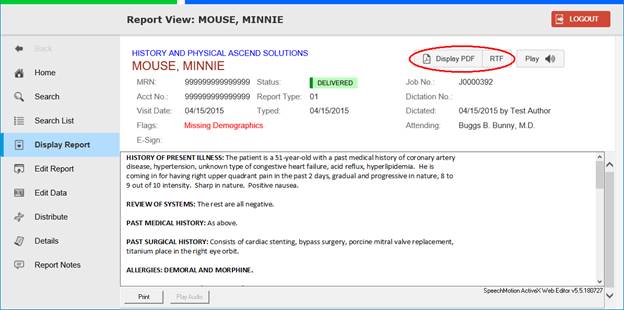
Added: E-Sign Portal export document to PDF/RTF
Document export in the E-Sign preview screen now includes
RTF file format in addition to PDF.
Fixed: MTVIMP DSS file import and minfilesize
The minimum file size option in Voice Import config was
not applied to DSS files. This has been fixed.
Fixed: Setup file maintenance and unintentional changes with mouse wheel
In Setup maintenance screens, scrolling the mouse wheel
over a combobox would change the selected item regardless if the combobox was
selected or not. This has been fixed.
Fixed: Setup providers “Create Site User Record”
Fixed multiple issues when using “Create Site User Record”
button in Provider File Maintenance.
·
Adjusted max length of Login ID field from 10 to 20 characters
to match size of Login ID field in Users table.
·
Adjusted max length of Password field from 10 to 15 characters
to match size of Password field in Users table.
·
Creating a new user record is now logged in MTFile.
·
Now will not allow creating a new record if a record with the
same Provider code already exists in the Site Users table.
·
Now setting additional default values in the newly created user
record.
·
The list of User Groups shown in the User Group pull down field
is now consistent and should only display the User Groups for the site.
Previously, this list might be just the site User Groups or in some cases all
User Groups.
Fixed: Issues when editing XML Templates
Fixed an intermittent issue in Template file maintenance
where the data from the XML tab of one template record was getting copied to
the XML tab of another template record.
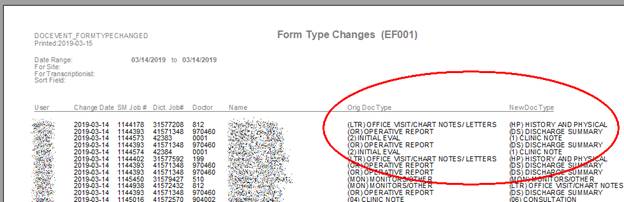
Fixed: Form Type Changes (EF001)
Management
report Form Type Changes (EF001) was incorrectly displaying the new form type
in both columns, Orig Doc Type and
New Doc Type.
This has been fixed. The change only applies to events that occur after this
update.
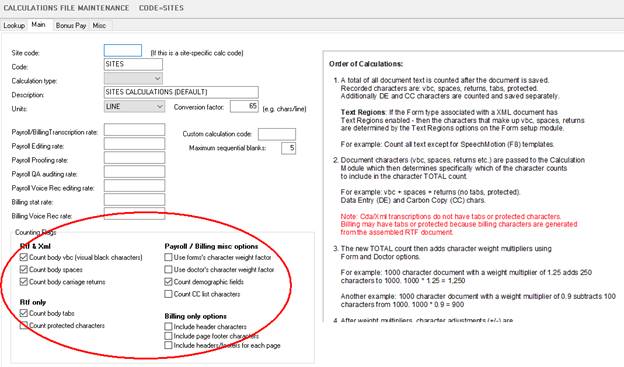
Changed: Instructions and notes added to Calculations maintenance screen
Counting Flag options were rearranged for better clarity.
A description of how calculations are applied is also documented on each
calculation screen.
Added: new HL7_PDF output device macros
Added new macro commands for the HL7_PDF output device.
#TEXTCOMPFIELD=<component_field_number>
- default component_field_number is 0.
Usually the document is place in the Observation Value (usually OBX.5) filed of the HL7
message.
To place the message in a component field of the
Observation Value field, add
#TEXTCOMPFIELD=x where x is
the component field value.
For example, #TEXTCOMPFIELD=5
will put the document in the OBX.5.5 field.
#USE64KLIMIT
– used when the external system has a limit of 64k bytes that can be received
in the Observation Value (usually OBX.5) field of the HL7 message.
When the Base64 encoded PDF document is larger than 64K bytes, using this
macro will split the document into 64k blocks and
put each 64k block into separate OBX segments.
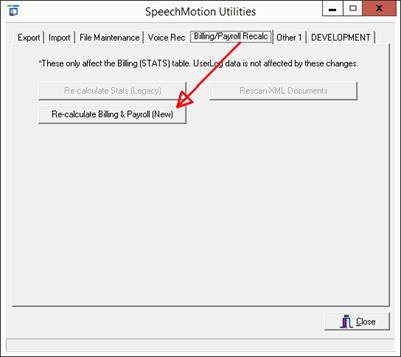
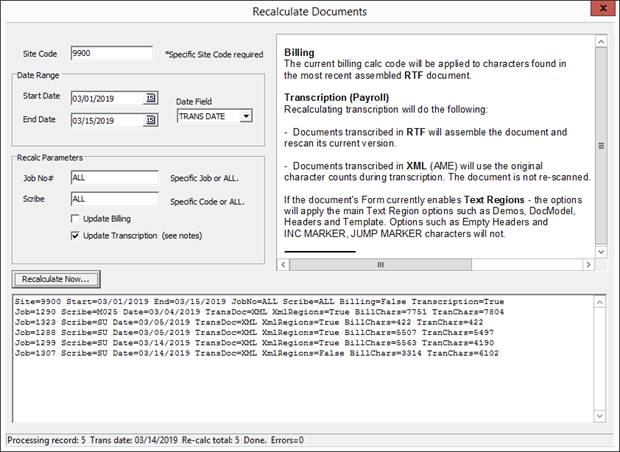
Added: New MTUTILS recalculate options
The recalculation module was updated with a new user
interface and options to accommodate recalculation of Cda/Xml
transcription editing. Previously, recalculation would
only work for billing, payroll would calculate the rendered RTF version
of the current document regardless if transcription was
edited in Cda/Xml.
Note: Recalculation of
transcription only updates the billing/payroll data (STATS table).

SpeechMotion
Software Team
www.speechmotion.com
|