|

What’s New in SpeechMotion 5.50
SpeechMotion 5.50 build 21021705 for February 2021
Release Summary
Enterprise Client
- Fixed: Rev Queue Assignment
dialog screen
- Added: Toggle Playback [F12]
backup options.
Workflow
Server
·
Added: New X.CC fields for use in HL7 interfaces.
·
Added: NPI (National Provider Info) fields for use on Forms and
HL7 interfaces.
·
Added: Additional fields to determine edit status for HL7
Interfaces.
·
Added: COMBINE values from multiple HL7 MPI, ORDER and MFN
fields into one.
·
Added: Additional date formats for use on Forms.
·
Added: Additional date formats for use on device output
directories.
·
Added: Gateway Service user account options in Device
Maintenance screens.
·
Added: Help screen added to Voice Import maintenance screen.
·
Changed: DVI_TXT_WAV mapping logic with string and logical
expressions.
Enterprise Client
Fixed: Rev Queue Assignment dialog screen
The
‘Create Feedback document for user’ checkbox prompt is now fully
visible.
Previously,
the word user was not be completely visible.
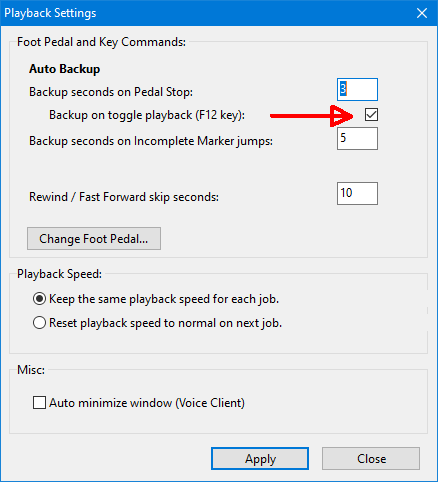
Added: Toggle Playback [F12] backup options.
Toggle playback using [F12] key now includes option to
backup.
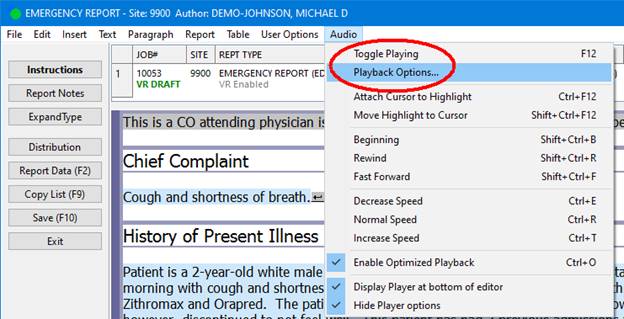
The playback settings screen is now available directly
from the editing modules.
Workflow Server
Added: New X.CC fields for use in HL7 interfaces.
Added six new X.CC fields for use in HL7 devices.
X.CCNPI -
strings together address NPI
field value and names (parsed in HL7 format) using the repeating char (~).
X.CCNPIX -
strings together address NPI
field value and names (parsed in HL7 format) using the repeating char
(~).
Excludes doctor, attdr, and mdprovider from the list.
X.CCEXTRAID1
- strings together address EXTRAID1
field value and names (parsed in HL7 format) using the repeating char (~).
X.CCEXTRAID1X
- strings together address EXTRAID1
field value and names (parsed in HL7 format) using the repeating char (~).
Excludes doctor, attdr, and mdprovider from the list.
X.CCEXTRAID2
- strings together address EXTRAID2
field value and names (parsed in HL7 format) using the repeating char (~).
X.CCEXTRAID2X
- strings together address EXTRAID2
field value and names (parsed in HL7 format) using the repeating char
(~).
Excludes doctor, attdr, and mdprovider from the list.
Added: NPI (National Provider Info) fields for use on Forms and HL7
interfaces.
Added new X.ATTENDING_NPI field to use on forms and HL7
devices.
Fills in the value from the NPI field in the Providers
table for the Attending provider or the Dictating provider if no Attending
provider.
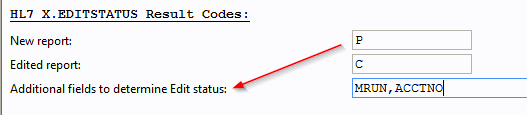
Added: Additional fields to determine edit status for HL7 Interfaces.
X.EDITSTATUS is a field that can be used in HL7 devices to
indicate whether a report is a new report or an edited report.
It works by looking in the DistLog table to see if there
are any records in the table matching the reportkey and devcode values.
It considers the report a new report if there are no matching records in the
table and an edited report if there are any matching records in the
table. We recently had a customer that wanted the HL7 message to show
the report as a new report if the MRUN or ACCTNO were changed. This new
option will allow you to set additional fields that the lookup in the DistLog
table can filter on to determine the status to send.
Added: COMBINE values from multiple HL7 MPI, ORDER and MFN fields into
one.
Added additional abilities to combine values from multiple
fields from a HL7 message in MTMPI, MTORDER, and MTMFN into one database
field.
For example, if I need to combine the MRUN and ACCTNO
fields together in this format, MRUN_ACCTNO, and store them in the EXTRA
field in the MPI table the mapping would be:
EXTRA,PID,3,1
EXTRA,”_”,,,,,,COMBINE
EXTRA,PID,18,1,,,,COMBINE
The syntax for mapping a field for a HL7 import in MTMPI,
MTORDER, or MTMFN now includes a new CONCAT field,
The new syntax is:
[field name],[segment],[field
piece],[component piece],[format code],[sub-component piece],[repetition
piece],[concat]
Valid values for the concat field are APPEND and
COMBINE. APPEND will concatenate fields and/or literal values together
if the first field has a value, otherwise it will return an empty
value. COMBINE will concatenate fields and/or literal values together
even if the first field does not have a value.
APPEND and COMBINE were and still are available in the
format code field. Added them as an option in the new concat field so
that format code could also be used for a field before concatenating.
Added: Additional date formats for use on Forms.
The new format is dd fullmonthname yyyy. Example: 5
October 2020.
The new format code to append to a date field is :D11
Example: [R.DICT_DATE:D11)
Added this new format code in the Insert Field form.
Added: Additional date formats for use on device output directories.
The following new date formats are available to the Output
Path.
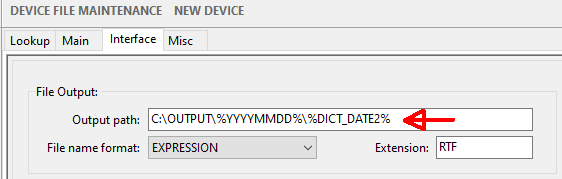
Date fields:
*
= new
%TODAY% - system
date, mmddyy
%MMDDYY% - system date
%YYMMDD% - system
date
%YYYYMMDD% -
system date*
%HHMMSS% - system
time*
%HHMM% - system
time*
%TRANS_DATE% -
trans date, mmddyy
%TRANS_DATE2% -
trans date, yyyymmdd*
%DICT_DATE% -
dictation date, mmddyy
%DICT_DATE2% - dictation
date, yyyymmdd*
%VISITDT2% - visit
date, mmddyy
%VISITDT2% - visit
date, yyyymmdd*
%SERVDT% - service
date, mmddyy
%SERVDT2% -
service date, yyyymmdd*
Additional fields:
%SITE%
%SCRIBE%
%DOCTOR%
%ORIGJOB%
%CNETJOB%
%REPORT_ID%
%REPORT_TYPE
%ATTDR%
%USER1%
%USER2%
%USER3%
%WORKTYPE%
%DICT_ID%
%DICTDOM%
%VISITDOM%
Added: Gateway Service user account options in Device Maintenance
screens.
For Gateway services, MTGWDISTSERVICE and MTUPLOADSERVICE.
Added username/password parameters for distributions that
need to write files to a share on another server/pc and for uploads that need
to read files from a share on another server/pc.
Currently, if we need to distribute files to a share we have
to setup the SpeechMotion Gateway Distribution Service to logon with a user
account. We also have to setup the SpeechMotion Gateway Upload Service
to logon with a user account if we need to read files from a share.
There are some disadvantages to this such as the user account for the
services logon has to be the same user as is logged into the Gateway Server
due to Advantage database licensing. This method will still work but
the new method
The new method will allow us to run the SpeechMotion Gateway
Distribution Service and the SpeechMotion Gateway Upload Service logged on as
the Local System account and still be able to write files to or read files
from a share.
Files distributed to a share through MTGWDISTSERVICE will
now connect and authenticate to the share, put the file in the share, and
then disconnect from the share. The service authenticates to the share
using the User name and password setup in the Device configuration for
distribution files or in Program Config for MTMESSAGE configurations for
files generated by MTMESSAGE.
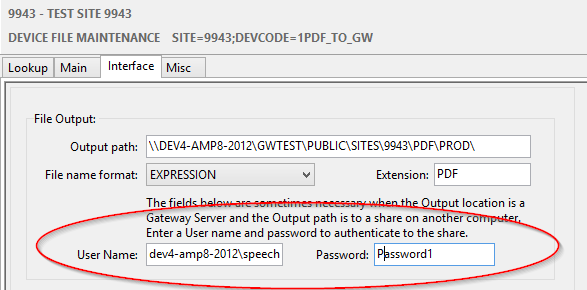
Configuration for distributions is done in Device File
Maintenance by simply populating the User Name and Password fields on the
Interface tab. The user name should be in the format domain\username if
using a domain login to access the share or in the format
computername\username if using a local user to access the share.
New User Name and Password fields in Device File
Maintenance:
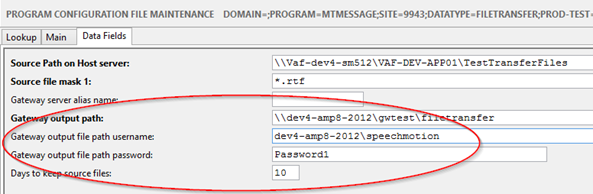
Configuration for MTMESSAGE files is done in Program
Configuration File Maintenance by simply populating the output file path
username and password fields on the Data Fields tab. The user name
should be in the formats described above.
New Username and password fields in Program Configuration
File Maintenance for a MTMESSAGE configuration
Files read from a share through MTUPLOADSERVICE will now
connect and authenticate to the share, get the file(s) from the share, and then
disconnect from the share. The service authenticates to the share using
the User name and password setup in Program Config for MTUPLOAD
configurations.
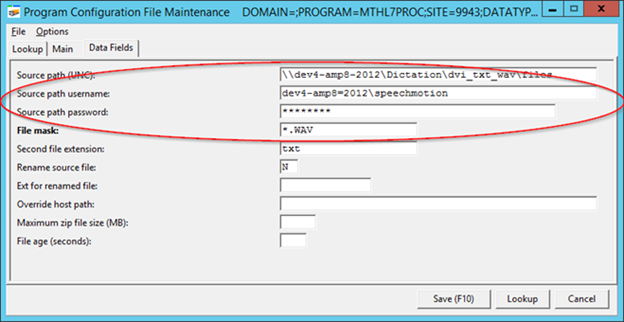
Configuration for MTUPLOADSERVICE on the Gateway server is
done in Program Configuration File Maintenance by simply populating the
Source path username and password fields on the Data Fields tab. The
user name should be in the formats described above.
Gateway server – MTUPLOADSERVICE configuration
Added: Help screen added to Voice Import maintenance screen.
Rearranged a few fields on the DVI tab.
For the DVI_TXT_WAV, DVI_VOX, or DVI_WAV audio formats,
the Dictator Mapping group box is all that is visible on the Mapping tab.
The DVI tab is no longer visible except for voice import
configurations using the DVI_TXT_WAV, DVI_VOX, or DVI_WAV audio format.
Added a new “Use new logic for evaluating Field Mapping
lines” checkbox in the Field Mapping group box. This option is necessary
to allow the previous logic to be used when evaluating mapping lines on
existing voice imports. New voice imports should try to use mapping
that supports the new logic.
The File Wizard for the DVI_TXT_WAV format has been
updated to have the “Use new logic for evaluating Field Mapping lines”
checkbox checked.
When adding a new voice import configuration, the default
is to have the “Use new logic for evaluating Field Mapping lines” checkbox
checked.
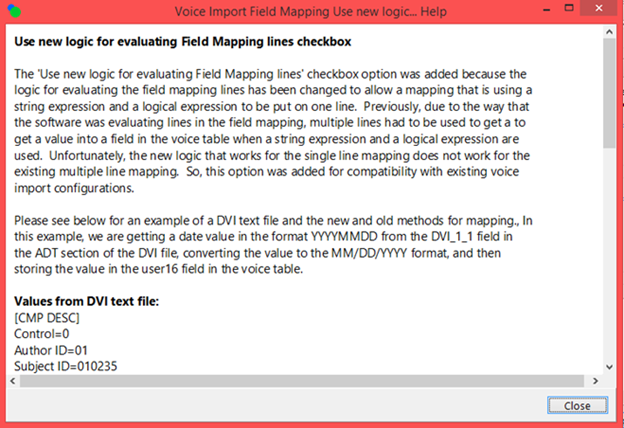
Added a Help button for the new option “Use new logic for
evaluating Field Mapping lines”.
Changed: DVI_TXT_WAV mapping logic with string and logical expressions.
Updated how MTVIMP handles evaluating lines in the Field
Mapping field on the DVI tab of the Voice Import configuration.
Previously, if you wanted to populate a field with a mapping that required
using a string expression and a logical expression, you had to use multiple
lines in the field mapping to do so. Now, you can do the mapping when
using string expressions and logical expressions in one line.
For example, this is a field in a DVI text file that
contains a date value in YYYYMMDD format and you want to put this value in
the User16 field in the voice file in a MM/DD/YYYY format.
ZDT_1_1=20201110
Using the old logic method, you would map like this:
USER16=ZDT_1_1;;DTOC(STOD(USER16))
USER17="";;""
USER16="";LEN(TRIM(USER16))<>10
Using the new logic method, you would map like this:
USER16=ZDT_1_1;LEN(TRIM(USER16))=10;DTOC(STOD(USER16))
Using the New logic mapping
line above, the mapping line is evaluated as follows:
·
If there is a logical expression in the mapping line, reads the
current value from the USER16 field in the voice table and stores it in a
variable.
·
Stores the value from the ZDT_1_1 field in the DVI text file in
the USER16 field in the voice table.
·
If there is a string expression in the mapping line, evaluates
the string expression and if successful puts that value in the USER16 field
in the voice table.
·
If there is a logical expression in the mapping line, evaluates
the logical expression. If the logical expression is True, the new
value in the USER16 field in the voice table is used. If the logical
expression is False or it caused an exception error, the original value for
the USER16 field stored in the variable in step 1 is put back into the USER16
field in the voice table.
Note: The logic to use for the new
method of evaluating a mapping line can cause the existing mappings to
break.
For this reason, had to add an
option to the DVI Field Mapping section of the Voice Import configuration to
allow for using the old or new method for evaluating the Field Mapping
lines.
The option is a checkbox labeled “Use new logic for
evaluating Field Mapping lines”.
This new method for evaluating Field Mapping lines only
applies to the DVI_TXT_WAV audio format.
Regards,

SpeechMotion
Software Team
www.speechmotion.com
|