Notes for previous releases can be found here:
https://download.speechmotion.com/installs/
|
This update includes support for additional USB foot pedals. |
|
What’s New in SpeechMotion 5.50
Release Summary
Enterprise Client
Workflow Server · Added: Enhanced multi-value segment parsing for MPI mapping · Added: Normalize paragraphs in Expanders · Added: MTMPI conditional updates for A31/A34 messages Enterprise Client Added: Infinity IN-USB 2/3 support and other modelsUSB Foot pedal support was updated to auto-detect several models currently available.VEC Infinity USB models 1 / 2 / 3 X-Keys XK-3 Philips LFH (ACC) 2330 4 button model Philips LFH (ACC) 2310 / 2320 3 button models Grundig Digta 540 PI Engineering SBS PI Engineering DWX PI Engineering SPX PI Engineering SBS PI Engineering SWR PI Engineering Dictation Device PI Engineering DVI Olympus Footswitch RS 27 / 28 / 31 / 32 Series
Workflow Server Added: Enhanced multi-value segment parsing for MPI mappingProvided a way to pull the correct value from an HL7 field that contains multiple values in repeating segments in a HL7 field. This is HL7 interfaces for MTPMI, MTORDER, and MTMFN.
Some fields may contain multiple values in repeating segments in a HL7 field. The fields most likely to have repeating segments are: Patient ID (PID.3), Patient Account Number (PID.18), Attending Doctor (PV1.7), Referring Doctor (PV1.8), Consulting Doctor (PV1.9), and Admitting Doctor (PV1.17). The new authority parameter provides a mechanism for returning the correct value from the repeating fields using the value in the assigning authority or assigning facility field.
Configuration is done in Program Configuration for HL7 interfaces for HL7-ADT, HL7-ORDERS, and HL7-MFN data types. The mapping syntax for these interfaces now includes a ninth element called authority.
Mapping syntax:
Syntax for authority field: [code]:[fieldno]. code is the value to match against the value in the assigning authority or assigning facility field. fieldno is the number of the assigning authority or assigning facility field in the repeating segment.
For example: This is an example of the value from an attending provider (PV1.7) from an ADT message:
PHYS9353^Physician^Anonymous^^^MD^^^ORHO_OK External ID^Personnel^^^External Identifier~9353^Physician^Anonymous^^^MD ^^^ORHO_OK Provider Num^Personnel^^^Provider Num~9353^Physician^Anonymous^^^MD ^^^ORHO_OK COMM DR NBR^Personnel^^^COMMUNITY DR NBR~208600000X^Physician^Anonymous^^^MD ^^^ORHO_OK Taxonomy ID^Personnel^^^TaxonomyID~1912968652^Physician^Anonymous^^^MD ^^^ORHO_OK NPI^Personnel^^^National Provider Identifier~BG7100617^Physician^Anonymous^^^MD ^^^ORHO_OK DOCDEA^Personnel^^^DOCDEA
In this example, we want to use the NPI number that is in the segment in blue. The mapping for this to return the provider's code would be: ATTDR,PV1,7,1,,,,,National Provider Identifier;13
The mapping to return the provider's name would be: ATTDRNAME,PV1,7,2,DOCNAME,,,,National Provider Identifier;13
Updated the controls and labels on the Mapping tab in Program Configuration.
The controls and labels on the Mapping tab in Program Configuration have been updated so that they are more specific to the data type of the configuration. For example, for the HL7-ADT data type, the HL7 Orders, HL7 MFN, and Load File buttons have been removed and the HL7 ADT button has been replaced with a Load Default Mapping button.
The Help button on the Mapping tab that was formerly inactive now works. Each data type has a separate help screen specific for the data. Added: Normalize paragraphs in ExpandersCreated a new routine to normalized the XML code on the XML Text tab for ExpandTypes and Templates. Normalizing XML means removing all XML attributes in context nodes except for attributes for bold, underline, italics, and jump markers. Also, if there is just one paragraph in the XML text, the paragraph node is removed so that the inserted xml text into a document will not create a new paragraph in the document. Finally, adjacent context nodes with no attributes are combined to one content node.
AME Editor - ExpandType Quick from the AME editor now normalizes the XML text that is copied into the new ExpandType record.
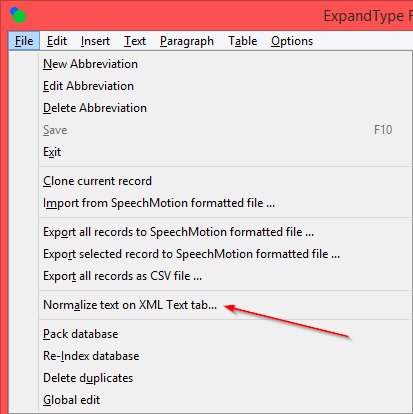
ExpandType Maintenance fixes/changes: Now includes a ‘Normalize text on XML Text tab…’ utility to normalize the XML code for all ExpandType records.
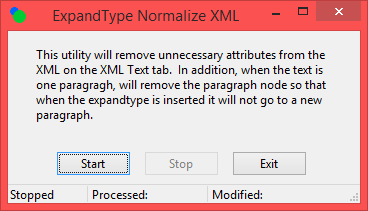
Select ‘Normalize text on XML Text tab…’ from the File menu. The window below should open. The utility will go through all records in the user’s ExpandType database to normalize the XML code in the XMLText field of each record in the database.
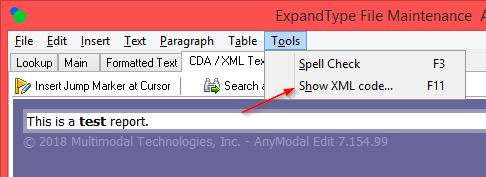
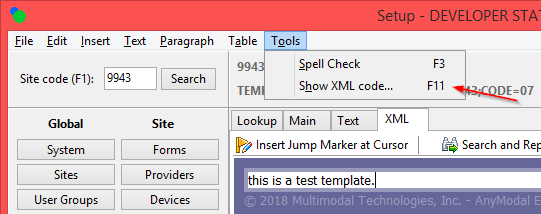
Added a Show XML code option. This option is available when the CDA/XML Text tab is selected. Also, this option is only available to users who have the ‘Allow RTF Editor/Viewer’ option set to Y.
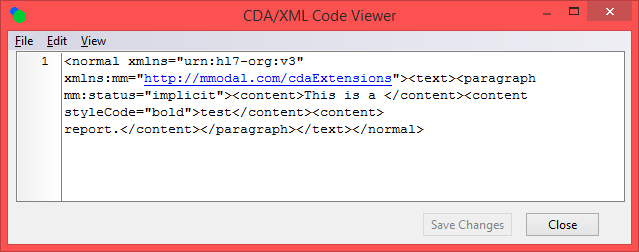
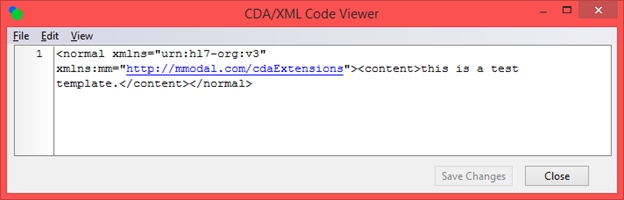
This screen is only a viewer. You cannot edit the XML code.
Fixed an issue where the text in the XML tab of one record could be inadvertently copied and saved to the text of the XML text tab on a different record.
Cursor is now visible in AME editor at beginning of text. Previously, the user had to click in the AME editor to get focus in the editor.
On Save, will now normalize the XML text. This will only occur if the CDA/XML Text tab was selected and a change was made to the XML text.
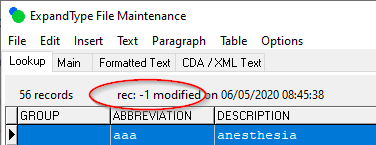
Fixed an issue where the record number was always displayed as -1. Now shows correct record number. Below is a screen shot of the issue.
Template File Maintenance fixes/ changes. Added a Show XML code option. This option is available when the CDA/XML Text tab is selected. Also, this option is only available to users who have the ‘Allow RTF Editor/Viewer’ option set to Y.
This screen is only a viewer. You cannot edit the XML code.
When selecting XML tab, the cursor is now visible in AME editor at beginning of text. Previously, the user had to click in the AME editor to get focus in the editor.
On Save, will now normalize the XML text. This will only occur if the XML tab was selected and a change was made to the XML text. Added: MTMPI conditional updates for A31/A34 messagesModified MTMPI to conditionally handle A31 and A34 message differently.
Currently, A31 and A34 ADT messages update the patient data in all records in the MPI table with a matching MRUN.
Added a Sites configuration field called “MPI field to make MRUN unique” that allows for updating MPI records matching MRUN and value from MPI field identified in the new field. This was needed because an account was sending ADT messages for the hospital and a clinic and occasionally the same MRUN was shared by two different patients.
This new feature allows for updating MPI records by MRUN and a second value that indicates if the message is for the hospital or clinic.
Regards,
SpeechMotion Software Team
|