|

What’s New in SpeechMotion 5.60
SpeechMotion 5.50 build 21072100 for July 2021
Enterprise Client
·
Added: Foot pedal auto detect and preferred device option when
multiple pedals are connected.
·
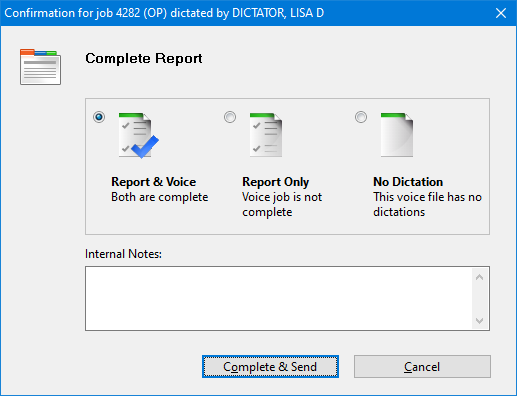
Changed: Passwords are no longer required to confirm document
completion.
·
Changed: Logon changes.
·
Changed: Improved installers.
·
Changed: Elevated privileges are no longer required to install
or run Enterprise Client.
·
Changed: Default installation path.
Workflow
Server
·
Added: MTVIMP convert two channel audio on import.
·
Added: New email alert on Batch Distribution updates.
·
Added: new Custom-ADT import for fixed length files.
·
Added: Workflow Server custom installers.
·
Added: Single Sign On (SSO) support for Microsoft Azure AD with
Enterprise Client.
Changed: Passwords are no longer required to confirm document completion.
When prompted to Complete & Send report, users are no longer
asked for their password.
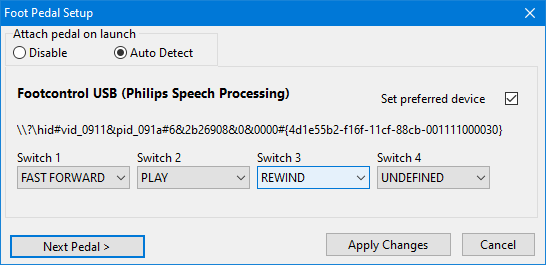
Added: Foot pedal auto detect and preferred device option when multiple
pedals are connected.
A preferred pedal device can be selected when multiple
devices are connected.
The Set preferred device option can be used when 2
transcription applications are running simultaneously and users want to
control each of them with a different pedal.
When 2 or more pedals are connected, click the Next
Pedal > button assign the next pedal.
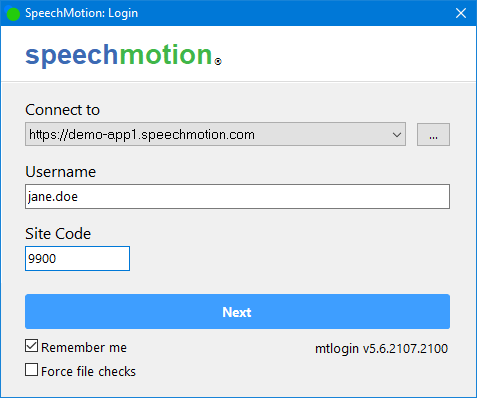
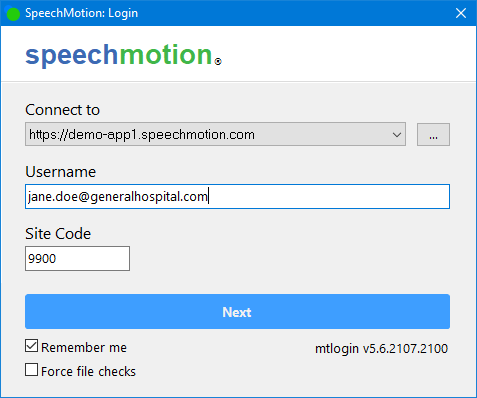
Changed: Logon changes.
Several changes to the user interface was made when to the
logon / updater.
·
No longer requires administrative / elevated privileges to
launch.
·
UAC does not have to be disabled.
·
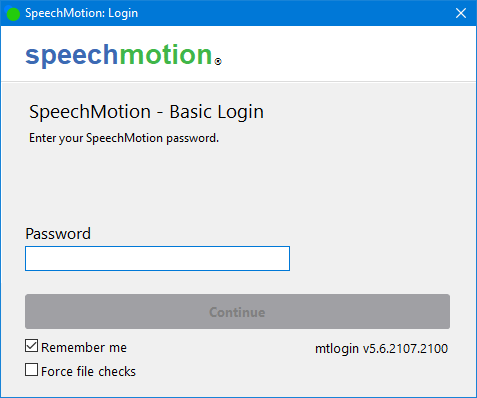
Users are not asked for a password until the second prompt
after clicking Next.
·
Remember me will save your username and site code for
subsequent launches.
·
Only one instance of the Logon can run at a time.
·
Logon warns users when Enterprise Client is already running –
requiring them to manually close.
Users are asked for their password on the second prompt.
Changed: Improved installers.
Installers for the Enterprise Client have been updated to
accommodate secure deployments in Active Directory environments when several
users may share the same workstation.
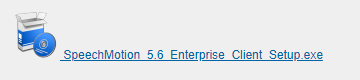
The filename for the installer was changed and now include
the build revision number of “5.6”.
The installer no longer asks the user for a installation
location.
The location is now %localappdata%\SpeechMotion.
Existing installations in the previous default path c:\speechmotion
will continue to work when updated however we recommend running the new
installer to remove the old path and reinstall to the new.
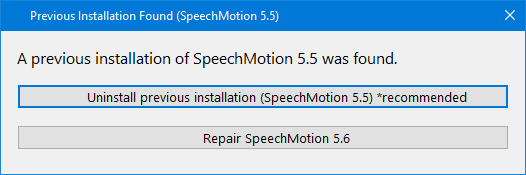
When launching the new installer – it will notify the user
when a previous installation was found and offer to uninstall it.
Uninstalling the previous version will remove the shortcut
links to the old installation path.
The installations are now private to each user and not
available to anyone else logging in.
Changed: Elevated privileges are no longer required to install or run
Enterprise Client.
At installation and during runtime, elevated privileges or
compatibility mode options are no longer necessary.
This is true regardless of installation path.
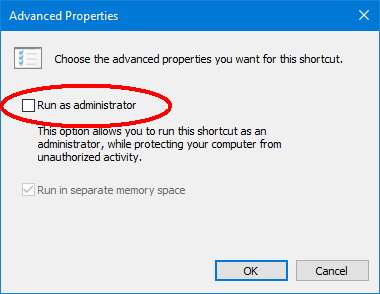
We recommend users disable Run as administrator If
their current installation does so.
Changed: Default installation path.
When new users install the SpeechMotion Enterprise Client
using the new 5.6 Installers. There are no options to change the installation
path.
Files will be installed to the user’s %localappdata%\SpeechMotion path.
Added: MTVIMP convert two channel audio on import.
Previously, an audio file with 2 channels would import
into SpeechMotion without any errors but would not play in the player.
Now converts voice audio files with 2 audio channels to 1
channel.
This is for voice imports using the GENERIC_AAC, GENERIC_M4A,
GENERIC_WAV, GENERIC_WMA, or MP3 Audio Formats.
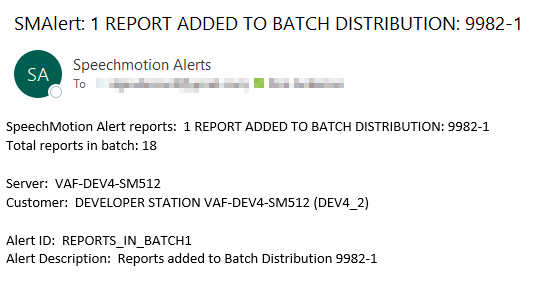
Added: New email alert on Batch Distribution updates.
This new alert will send an email each time a report is
added to a specific Batch Distribution.
The email shows the number of reports added to the Batch
Distribution since the last check and shows the total number of reports in
the Batch Distribution.
Configuration is simply creating a new alert. Then
enter an Alert ID, Description, and select the ‘Check for report(s) added to
a Batch Distribution (8)’ Alert Type on the Main tab.
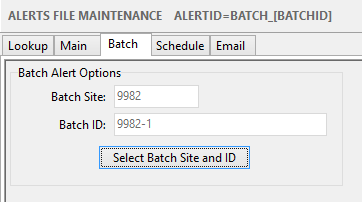
On the Batch tab, use the ‘Select Batch Site and ID’
button to select the site and ID. The button will open first open a
Sites lookup window and then a Batch Control lookup window. Below is
the new Batch tab in Alerts.
Then select a Schedule. Suggestion here is Recurring
and Every 5 minutes.
Finally, enter Email recipients.
A wizard for this Batch Distribution alert has been added
for configurations.
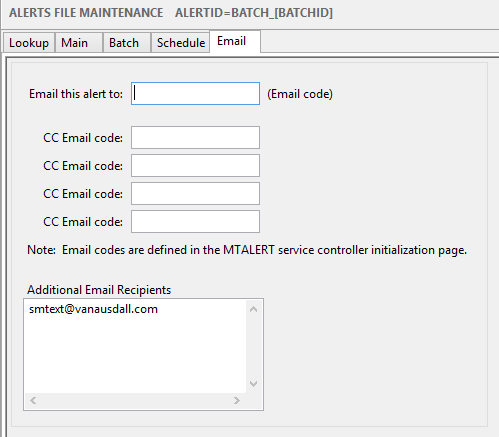
Added expanded capability to add email recipients to
Alerts.
Previously, only five email recipients could be set up for
an alert and those five recipients had to be set up in the MTALERT
configuration. Added a memo field where additional email recipients can
be added. Simply enter a carriage return delimited list of email
addresses in the Additional Email Recipients field. This field can be
used in conjunction with the email code fields or all recipients can simply
be put in this field.
Added: new Custom-ADT import for fixed length files.
Fixed Length file type are files where fields begin at a
certain character position and extend for a set number of character.
Below is an example.
PATIENT DEMOGRAPHIC REPORT 07/02/2021
MRUN
ACCTNO PATLAST
PATFIRST ADMT DATE
645374
764532 SMITH
RHONDA 07/02/2021
984562
763567 JOHNSON
GREGORY 07/02/2021
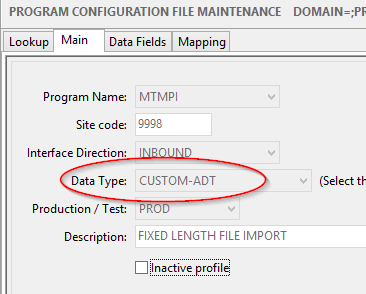
This new import type is configured by selecting CUSTOM-ADT
as the Data Type on the Main tab in Program Configuration.
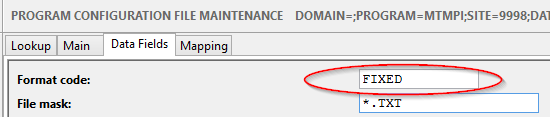
Then type in FIXED as the format on the Data Fields tab.
Then do the mapping on the Mapping tab.
Please use the Help button on the Mapping tab for
information on mapping.
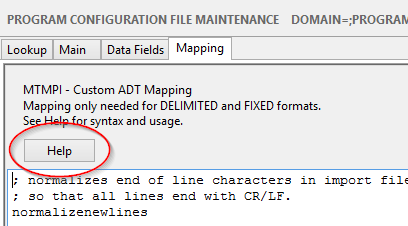
Two new special fields have been added to mapping for
this new FIXED format and also for the DELIMITED format.
The first is normalizenewlines. This option insures
that all lines in the import file end with carriage return/line feed
characters instead of just a carriage return or a line feed. Files will
not process correctly with only a CR or LF character at the end of lines.
Usage is to just put normalizenewlines on a line in the
mapping field.
The second is excludeline. This option is used to
prevent certain lines from being processed during import. This would
typically be header lines at the top of a file such as lines showing field
names.
In the small example file at the top, we would not want
the first two lines of this file to process:
PATIENT
DEMOGRAPHIC REPORT 07/02/2021
and
MRUN
ACCTNO PATLAST
PATFIRST ADMT DATE
Usage to exclude these lines is:
excludeline=PATIENT
DEMOGRAPHIC REPORT
excludeline=MRUN
ACCTNO PATLAST
PATFIRST ADMT DATE
There can be up to ten excludeline lines in mapping.
The text following excludeline does not have to match the
text on the entire line to be excluded, it only has to match any part of the
text on a line.
The second line above could just be: excludeline=MRUN or excludeline=ACCTNO, etc.
Added: Workflow Server custom installers.
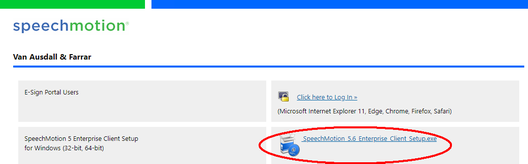
Workflow Server splash pages now include the new SpeechMotion
5.6 installer with pre-loaded URL.
New users can be directed to the default page e.g. https://workflowserver.speechmotion.com
and launch the installer linked on the page. The installer will autofill the
URL to the workflow server – no longer requiring the user to do so.
Added: Single Sign On (SSO) support for Microsoft Azure AD with
Enterprise Client.
SSO support using Azure AD is available for those who want
to sign into SpeechMotion using the same credentials used in at organization.
This option requires .NET Framework 4.6.1 or greater to be
installed.
Most Windows 10 installations that are regularly updated
will have this installed.
SSO currently is not available on the E-Sign Portal.
Contact SpeechMotion support for setup questions.
Regards,

SpeechMotion
Software Team
https://www.speechmotion.com
|