Notes for previous releases can be found here:
https://download.speechmotion.com/installs/
|
SpeechMotion applications saw a variety of changes including a new distribution output type, additional workflow options for MTs to route documents directly to review queues. Enhanced user experience in the Voice Manager and Voice Client as well changes to E-Sign Portal login screens to accommodate Azure AD SSO. |
|
What’s New in SpeechMotion 5.60
Release Summary
Enterprise Client · Added: User option No Incomplete Marker Spacing · Added: MT Report Option - Voice Only Workflows · Changed: In QA Manager, improved confirmation dialogs when completing document reviews · Changed: Improved application response for various operations in the Voice Manager · Changed: Toolbar updates to Voice Manager module & Voice Client · Fixed: “Out of bounds” errors in QA Feedback module · Fixed: Auto-Capitalization issues · Fixed: Issues when using Clone Report from the transcription module · Fixed: Header/Footer updates after changed in RDS data entry screens · Fixed: Issues with unintentional work pool selections in transcription module. · Fixed: Issues with COM server registrations on application startup Workflow Server · Added: Additional substitution variables for output path · Added: Updates to Single Job batch distributions · Added: Additional Route to Review options from Transcription · Added: Billing options for Form and Provider Weights now applies to billing unit MINUTES · Changed: Additional options and improvements to Form, Templates and other Setup Modules · Changed: Workflow File Maintenance changes to Site Review status. · Fixed: System Setup records not displayed intermittently
Enterprise Client Added:
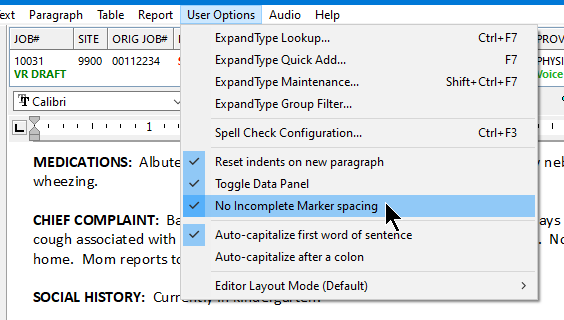
User option No Incomplete Marker Spacing
Added a new User Option in the SpeechMotion Editor: No Incomplete Marker spacing.
By default, incomplete markers are inserted with a leading and a trailing space character in the SM editor. The No Incomplete Marker setting option inserts the incomplete marker without the leading and trailing spaces.
Added:
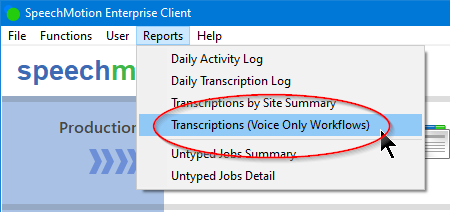
MT Report Option - Voice Only Workflows
The quick reports available to MTs on the main screen now includes an addition item.
Transcriptionist Activity Log (Voice Only) (D012_VO)
This report displays the MTs activities specifically for Voice Only workflows. |

|
Previous Review Queue Assignment dialogs |
New single dialog |
|
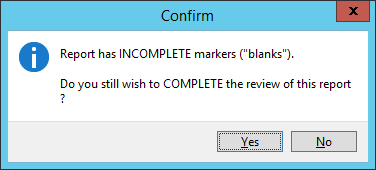
This dialog could be followed by two or three of the following dialogs if a report still has Incomplete Markers or Missing Demographics:
|
|
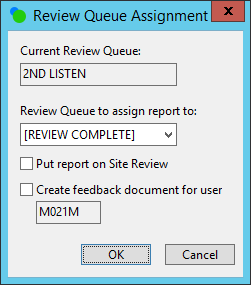
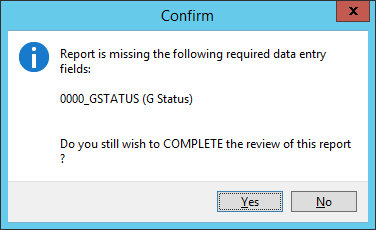
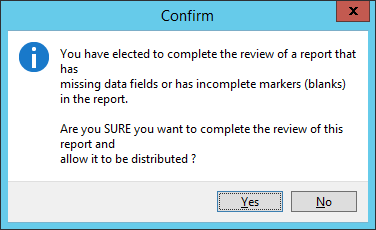

There is a new Report Action group box where a user selects the action to do to a report. Use Complete Report to complete the reviewed report.
Use Assign Report to Review Queue to assign a report to a specified review queue that can be selected in the pull down field.
If available, use Put Report on Site Review to assign a report to the Site Review status.
Put Report on Site Review is only enabled if the site is set up to use Site Review, if the user has rights to put a report on Site Review, and
if the report is not already on Site Review. By default, Complete Report will be selected.
When using Complete Report, there is a flashing red label above the OK button when the report has Incomplete Markers and/or Missing Demographics. This is basically the warning that the report still has Incomplete Markers/Missing Demographics instead of using additional dialogs.
Changed:
Improved application response for various operations in the Voice Manager
Improved speed of the following processes in Voice Manager.
1. Assigning jobs.
2. Clearing Assigned jobs.
3. Changing Status of jobs.
4. Changing Priority of jobs.
5. Calculating totals that are displayed in the status bar.
Improved selection of multiple jobs. Previously, it was very easy to lose the selection of multiple jobs.
The number of jobs and length of jobs selected is now displayed in a different location on the Status Bar.

Removed the prompt displayed for each job when editing multiple jobs and the form did not use work pool categories.
Prompt was “Cannot update the Work Pool Categories for job xxxx. Report type xxxx does not use the WP Category fields.”
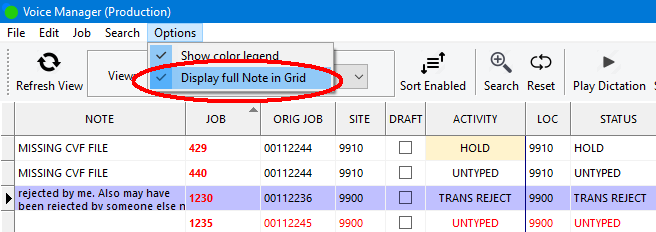
Can now display the full Note field in the grid. Normally, when there is a Note for a dictation job, the Note field just indicates
that there is a note with an asterisks (*) in the N column. You can now display the full Note. Select “Display full Note if Grid”
from the Options menu to display the notes.
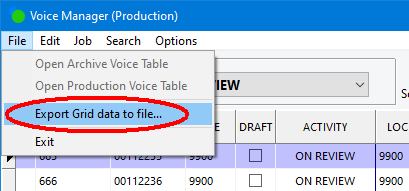
Can now export the data in the Voice Manager grid to either a csv file or a xml file. Select Export Grid data to file…
from the file menu.
Fixed an issue where record edits could not be made on multiple jobs if some selected jobs were voice draft jobs and some
were not voice draft jobs.
Changed:
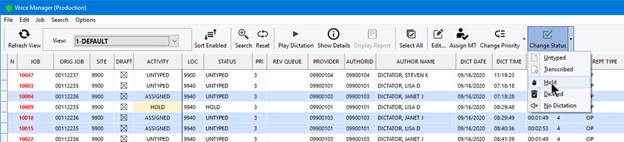
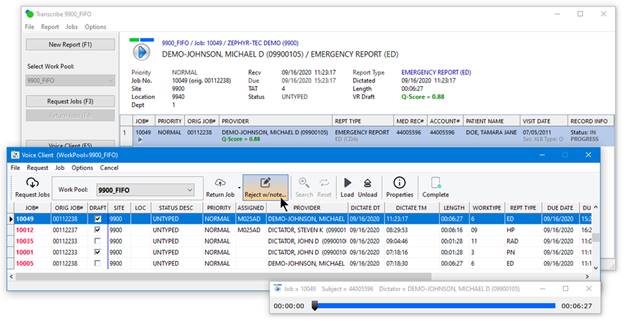
Toolbar updates in Voice Manager module & Voice Client
The toolbars replicate many of the common functions previously available in the main menu and context menu (right-click).
Fixed:
“Out of bounds” errors in QA Feedback module
On rare occasions users would experience errors while reviewing QA Feedback. The error would occur when there were an
unmatched number of quote (“) characters in the QA notes field.
This issue has been resolved.
Fixed:
Auto-Capitalization issues
Fixed an issue and added a couple of
enhancements to the Auto-capitalize first word of a sentence feature
in the
SpeechMotion editor and the QA Manager editor.
1. Fixed an issue where when
typing a single letter word such as A or I at the beginning of a paragraph
the first
letter of the second word would as be capitalized. For example, “A
Patient complains of…” is now “A patient complains of…”.
2. Auto-capitalization now
occurs when text is typed immediately following a Jump Marker when the
Jump Marker is a the beginning of a paragraph or a
new sentence.
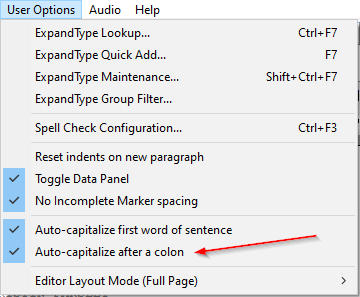
3. Added a new user option Auto-capitalize
after a colon to auto capitalize the first letter of a word following a
colon.
This feature is disable unless Auto-capitalize first word of a sentence
is enabled.
Updated “Auto Capitalize first word of a sentence” in the SpeechMotion Editor and in the QA Auditing Editor.
Previously, the Auto Capitalization would only capitalize the first word if there were two spaces between sentences.
Now the first word will be capitalized with one or two spaces between sentences.
Fixed:
Issues when using ‘Clone Report’ from the transcription module
In the Transcribe module, only the last cloned report was getting entries written to the UserLog table.
Fixed so that now the original report and all cloned reports are now getting an entry written to the
UserLog table when each report is saved. Previously, only the last cloned report was getting the
Activity field in the report record set to Transcribe, and this was causing the reports to not create entries in the
UserLog table. Now the original and all cloned reports are getting the Activity field set which allows the UserLog entries to be created.
Removed the Clone Report option in the SpeechMotion editor in the Batch Distribution module.
Fixed:
Header/Footer updates after changed in RDS data entry screens
Some users experienced issues reloading headers and footers in the report when data is changed in the Data Entry Screen. Also, header and footers are updated in the preview document in the Reports Options screen.
This has been resolved.
Fixed:
Issues with COM server registrations on application startup
On startup, some users running multiple installations of SpeechMotion may experience issues when out-of-process COM servers were loaded from the wrong path.
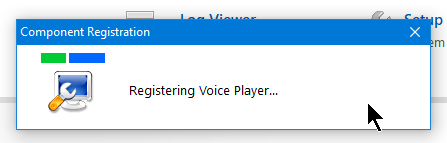
This has been resolved.
Workflow Server
Added:
Additional substitution variables for output path
In Device File Maintenance, added additional variable substitution values for the Output path field.
New variables include: %USER4%, %DICTLOC%, %DEPARTMENT%, %CUSTDATA1%, %CUSTDATA2%, %CUSTDATA3%, and %CUSTDATA4%.
Added a Help button that lists all available substitution variables for the Output Path field.
Added: Updates to
Single Job batch distributions
Single Job batch distribution combines all reports in a Batch
Distribution into one file for output to a Printer
or File.
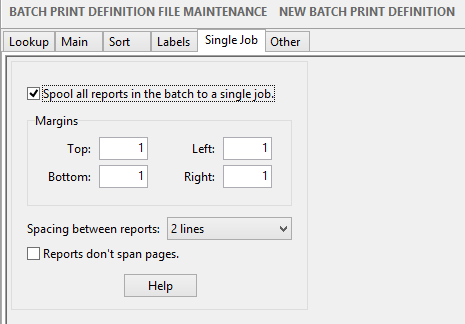
Single Job batch distribution is configured in Batch Print Definition File Maintenance on the Single Job tab.
Enhancements include:
1. In addition to sending the
Single Job file to a printer, can now save the Single Job file to a
file in RTF, PDF, TEXT, WORD, or WORD_DOCX format.
2. Spacing between reports
can now be set from between 2 lines to 10 lines between reports or with a
Page Break
between reports.
3. Optionally, can keep
reports from spanning pages. In other words, a report will not start at
the bottom of one page and
continue on the next page.
A Help button has been added on the Single Job tab of the Batch Print Definition to explain all of the options.
Below is a screenshot of the updated Single Job tab in Batch Print Definition File Maintenance.
Added:
Additional Route to Review options from Transcription
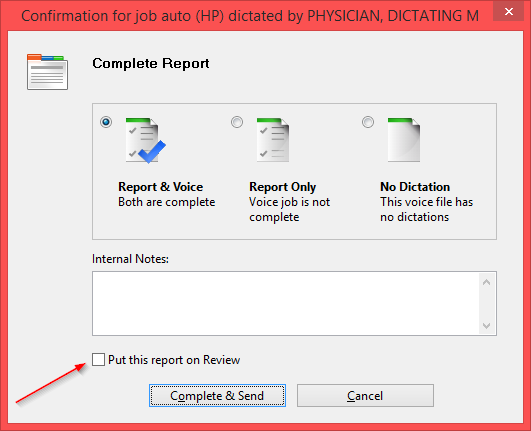
Added a new feature that allows a user to put a report On Review when ending a report in the Transcribe module.
A user that has been configured to be allowed to put transcribed reports on review will now see an additional
option on the Confirmation screen when saving a report. The new option is a check box labeled Put this report on Review.
See below. When a user checks this check box, the report is put On Review into the review queue specified in the Users table for that user.
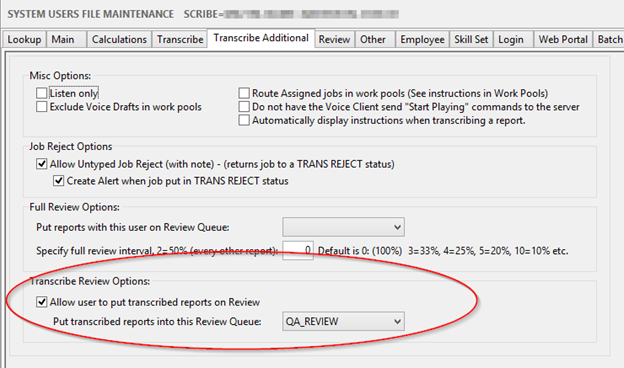
Configuration to make this check box available is done in Users or Site Users File Maintenance in Setup.
Two new options have been added on the Transcribe Additional tab. First click on the Allow user to put transcribed reports on Review check box.
Then select the Review Queue to put the report into.
In Workflow, can now use User Fields in Report Logical Expressions.
User fields are SpeechMotion
Fields that are configured using no value in the Database field. The
values for User fields are
stored in a Reports record in the userflds
field.
Information is stored in this field using
name/value pairs in the format name=value.
To use a User field in the logical
expression, enclose the SpeechMotion Field name in
brackets as shown below.

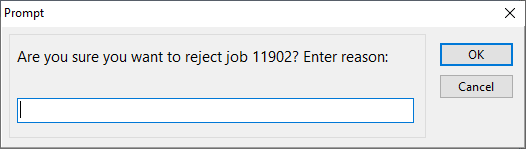
Fixed the Prompt dialog.
Added more room for the prompt label so that it is wider and can display two lines without cutting off part of the text on the second line.
Old:
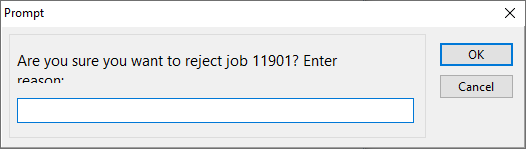
New:
Added:
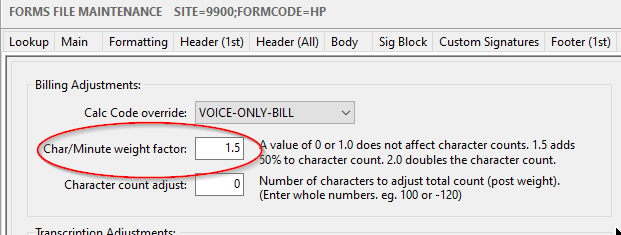
Billing options for Form and Provider Weights now applies to billing unit
MINUTES
Options for weight-based adjustments in the Form and Provider billing tabs now support weigh adjustments for billing calculation type: MINUTES.
Weight options also have to be enabled in the calculation record.
Changed:
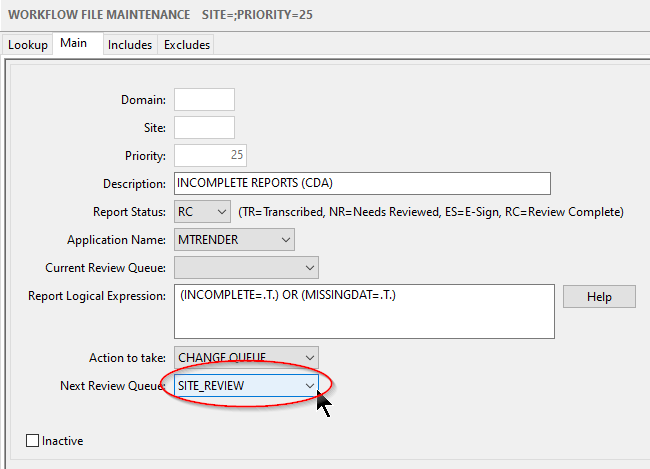
Workflow File Maintenance changes to Site Review status.
In Workflow File Maintenance, can no longer add a workflow that changes the status to Site Review (SR) if the site is not
configured to Allow reports to be put on Site Review.
Workflows that change the status to Site Review (SR) will be ignored when evaluating Workflows if the site is not
configured to Allow reports to be put on Site Review.
Changed:
Additional options and improvements to Form, Templates and other Setup
Modules
Added initialization codes to RTF documents for compatibility when opening documents in Microsoft Word
RTF Documents now include the values \dntblnsbdb\spltpgpar in the rtf code. These values are
included near the top
of the rtf file with some initialization values.
The \dntblnsbdb value turns off the Word compatibility
option Balance SBCS characters and DBCS characters when
RTF documents are opened in Microsoft Word. This compatibility option
caused the spacing between words to be larger
in Word than the spacing between words when the document is opened in the SM
editor. Turning this option off keeps
the spacing between words the same in Word as in SpeechMotion.
The \spltpgpar values turns off the Word compatibility
option Split apart page break and paragraph mark.
This option has something to do with how page breaks appear when a document
is opened in Word. We want this option off.
General RTF improvements
1. Better handling of tables,
particularly individual cell padding. When copying a table from Word
into SpeechMotion
the values of the padding in individual table cells was handled differently
than Word. The padding margin for top
and left padding were swapped. Now handling top and left cell padding
the same as Word.
2. In the SpeechMotion
and Auditor editors, when inserting an Expandtype
at the beginning of a paragraph, the
alignment would be changed from center, right, or justified to left.
Alignment now stays at what it was before
the Expandtype was inserted.
3. Changed Automatic
Orphan control for signature block. Now only applying code to keep
all of the signature
block and minimum number of body lines on last page together if the lines in
the body of the report and the
end of the signature block are on different pages.
4. Updated inserting cc list procedure when automatically adding cc list to the end of a report.
Print Preview from SpeechMotion editor, AME editor, and Report Search
1. Fixed an issue with page
numbering not displaying on the right margin when setting page numbering to
the
right margin using a right tab stop. The page numbering will now be
displayed on the right margin.
2. Updated the procedure for displaying the Print Preview Dialog.
Forms File Maintenance in System Setup
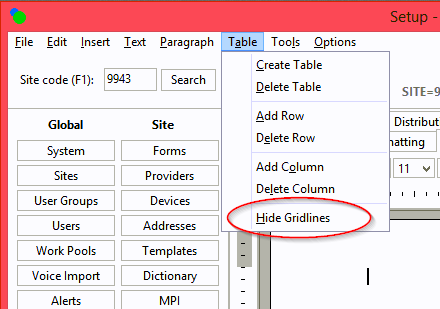
1. Table grid lines for
tables in all tabs containing RTF are now visible by default. They can
be toggled off
or on with a new Show/Hide Gridlines menu item under Table menu.
2. Table non-visible gridlines are now a darker color so that they are more visible.
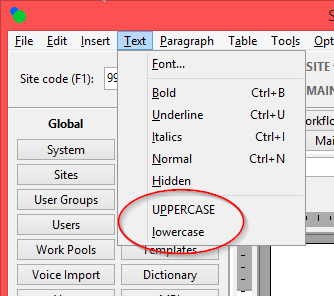
3. Added new Text menu items
for UPPERCASE and lowercase. These items are toggle items.
When UPPERCASE is checked, all selected text is in Upper case and when
unchecked all selected text in normal case.
When lowercase is checked, all selected text is in Lower case and when
unchecked all selected text in normal case.
These menu items will now be checked or unchecked as appropriate to the
attributes of the character at the current cursor position.
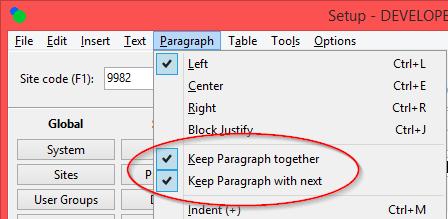
4. Added Keep Paragraph
together and Keep Paragraph with next menu items under
Paragraph.
Keep Paragraph together keep a paragraph on the same page. Keep Paragraph
with next keeps
two or more consecutive paragraphs on the same page. These menu items
will now be checked or
unchecked as appropriate to the attributes of the character at the current
cursor position.
5. Fixed Print Preview of
form so that the filler text to make two pages will be inserted as normal
text
in the default font and font size of the form.
6. The Text menu items: Bold,
Underline, Italics, Hidden, UPPERCASE, and lowercase will now be checked
or unchecked as appropriate to the attributes of the character at the current
cursor position.
7. The Paragraph menu items:
Left, Center, Right, and Block Justify will now be checked or unchecked as
appropriate to the alignment of the current cursor position.
Template File Maintenance in System Setup
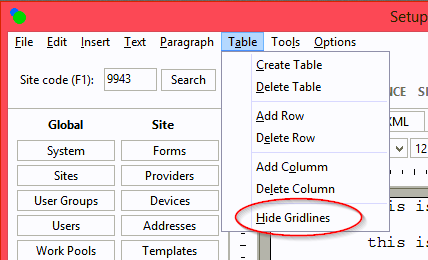
1. Table grid lines for
tables in Text tab are now visible by default. They can be toggled off
or on with a new
Show/Hide Gridlines menu item under Table menu.
2. Table non-visible gridlines are now a darker color so that they are more visible.
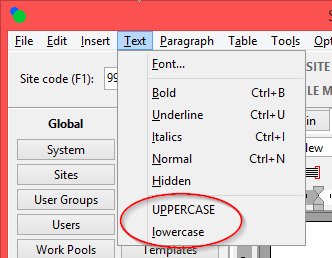
3. Added new Text menu items
for UPPERCASE and lowercase. These items are toggle items.
When UPPERCASE is checked, all selected text is in Upper case and when
unchecked all selected text in normal case.
When lowercase is checked, all selected text is in Lower case and when
unchecked all selected text in normal case.
These menu items will now be checked or unchecked as appropriate to the
attributes of the character at the current cursor position.
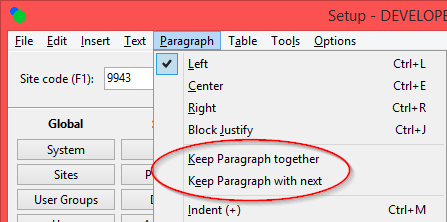
4. Added Keep Paragraph
together and Keep Paragraph with next menu items under
Paragraph.
Keep Paragraph together keep a paragraph on the same page. Keep
Paragraph with next keeps
two or more consecutive paragraphs on the same page.
These menu items will now be checked or unchecked as appropriate to the attributes
of the character at the current cursor position.
5. The Text menu items: Bold,
Underline, Italics, Hidden, UPPERCASE, and lowercase will now be checked or
unchecked as appropriate to the attributes of the character at the current
cursor position.
6. The Paragraph menu items:
Left, Center, Right, and Block Justify will now be checked or unchecked as
appropriate to the alignment of the current cursor position.
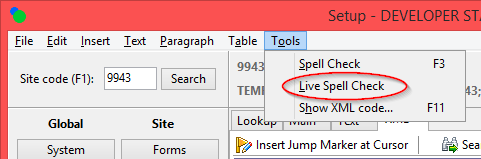
7. On the XML tab, added a
Live Spell Check option under the Tools menu. Live Spell Check turns on
the
red underlining of mis-spelled words. This setting is a user setting.
ExpandType File Maintenance
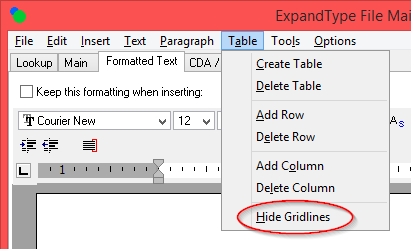
1. Table grid lines for
tables in the Formatted Text tab are now visible by default. They can
be toggled off or
on with a new Show/Hide Gridlines menu item under Table menu.
2. Table non-visible gridlines are now a darker color so that they are more visible.
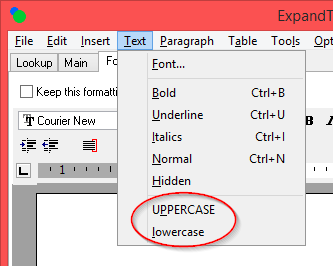
3. Added new Text menu items
for UPPERCASE and lowercase. These items are toggle items.
When UPPERCASE is checked, all selected text is in Upper case and when
unchecked all selected text in normal case.
When lowercase is checked, all selected text is in Lower case and when
unchecked all selected text in normal case.
These menu items will now be checked or unchecked as appropriate to the
attributes of the character at the current cursor position.
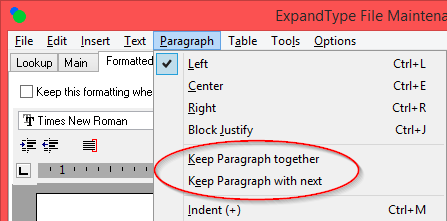
4. Added Keep Paragraph
together and Keep Paragraph with next menu items under
Paragraph.
Keep Paragraph together keep a paragraph on the same page. Keep Paragraph
with next keeps two or more
consecutive paragraphs on the same page. These menu items will now be
checked or unchecked as appropriate
to the attributes of the character at the current cursor position.
5. The Text menu items: Bold,
Underline, Italics, Hidden, UPPERCASE, and lowercase will now be checked
or unchecked as appropriate to the attributes of the character at the current
cursor position.
6. The Paragraph menu items:
Left, Center, Right, and Block Justify will now be checked or unchecked as
appropriate to the alignment of the current cursor position.
7. On the CDA / XML Text tab,
added a Live Spell Check option under the Tools menu. Live Spell Check
turns on
the red underlining of mis-spelled words. This setting is a user
setting.
MTEditor
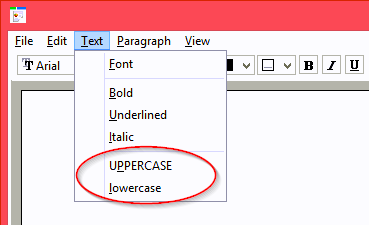
1. Added new Text menu items
for UPPERCASE and lowercase. These items are toggle items.
When UPPERCASE is checked, all selected text is in Upper case and when
unchecked all selected text in normal case.
When lowercase is checked, all selected text is in Lower case and when
unchecked all selected text in normal case.
These menu items will now be checked or unchecked as appropriate to the
attributes of the character at the current cursor position.
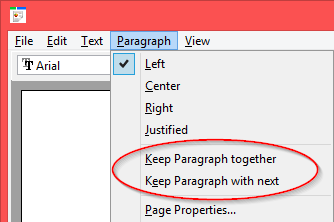
2. Added Keep Paragraph
together and Keep Paragraph with next menu items under
Paragraph.
Keep Paragraph together keep a paragraph on the same page. Keep
Paragraph with next keeps two
or more consecutive paragraphs on the same page. These menu items will
now be checked or unchecked
as appropriate to the attributes of the character at the current cursor
position.
3. Added code to determine
language from computer settings to use for setting RTF global setting and
ruler setting for inches or centimeters. Included some commented code
for doing translation in FormCreate.
SpeechMotion Editor
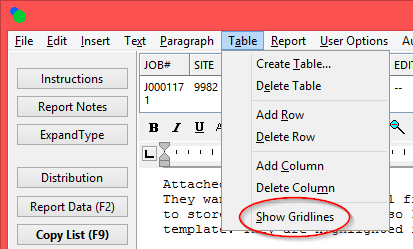
1. Table grid lines for
tables are now visible by default. They can be toggled off or on with a
new
Show/Hide Gridlines menu item under Table menu. In the SpeechMotion Editor, this is a user saved setting.
The initial default is to Show the gridlines.
2. Table non-visible gridlines are now a darker color so that they are more visible.
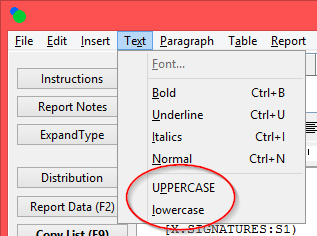
3. Added new Text menu items
for UPPERCASE and lowercase. These items are toggle items.
When UPPERCASE is checked, all selected text is in Upper case and when
unchecked all selected text in normal case.
When lowercase is checked, all selected text is in Lower case and when
unchecked all selected text in normal case.
These menu items will now be checked or unchecked as appropriate to the
attributes of the character at the current cursor position.
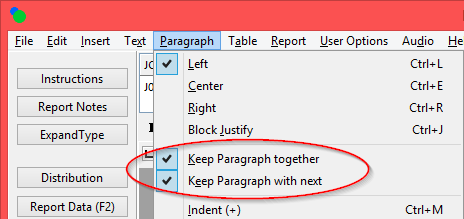
4. Added “Keep Paragraph
together” and “Keep Paragraph with next” menu items under
Paragraph.
Keep Paragraph together keep a paragraph on the same page. Keep
Paragraph with next keeps
two or more consecutive paragraphs on the same page. These menu items
will now be checked or
unchecked as appropriate to the attributes of the character at the current
cursor position.
5. The Text menu items: Bold,
Underline, Italics, Hidden, UPPERCASE, and lowercase will now be checked or
unchecked as appropriate to the attributes of the character at the current
cursor position.
6. The Paragraph menu items:
Left, Center, Right, and Block Justify will now be checked or unchecked as
appropriate to the alignment of the current cursor position.
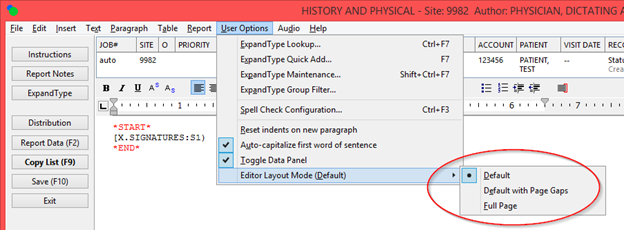
7. Added new Editor Layout
Mode views. Default is the current editor view. Default with Page
Gaps is like
Default except there is a gap at page breaks instead of a dashed line and the
left side of the page is on the
left instead of the left margin. Full Page show the full page of the
document with non-editable headers and
footers displayed at the top and bottom of the page. In additional, if
a form is using a body header template,
it is displayed in the first page header. The Layout mode is a user
setting so the editor will open with the last view used per user.
QA Auditing Editor
1. Table grid lines for
tables are now visible by default. They can be toggled off or on with a
new
Show/Hide Gridlines menu item under Table menu. In the SpeechMotion Editor, this is a user saved setting.
The initial default is to Show the gridlines.
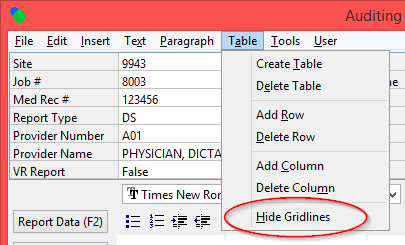
2. Table non-visible gridlines are now a darker color so that they are more visible.
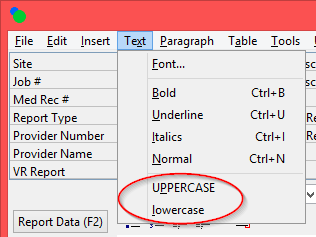
3. Added new Text menu items
for UPPERCASE and lowercase. These items are toggle items.
When UPPERCASE is checked, all selected text is in Upper case and when
unchecked all selected text in normal case.
When lowercase is checked, all selected text is in Lower case and when
unchecked all selected text in normal case.
These menu items will now be checked or unchecked as appropriate to the attributes
of the character at the current cursor position.
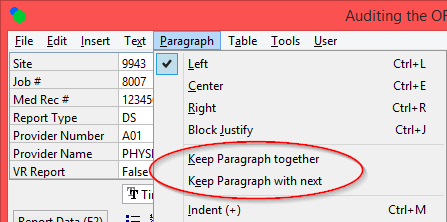
4. Added Keep Paragraph
together and Keep Paragraph with next menu items under
Paragraph.
Keep Paragraph together keep a paragraph on the same page. Keep
Paragraph with next keeps two or
more consecutive paragraphs on the same page. These menu items will now
be checked or unchecked as
appropriate to the attributes of the character at the current cursor
position.
5. The Text menu items: Bold,
Underline, Italics, Hidden, UPPERCASE, and lowercase will now be checked
or unchecked as appropriate to the attributes of the character at the current
cursor position.
6. The Paragraph menu items:
Left, Center, Right, and Block Justify will now be checked or unchecked as
appropriate to the alignment of the current cursor position.
7. Replaced TtsGrid used to display report information with an AdvStringGrid.
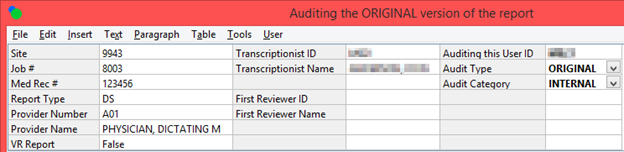
8. Password is no longer required in Confirmation dialog when saving an audited report.
Template Lookup form in SpeechMotion Editor
1. If a template has images,
now displays the images in the RTF preview part of the lookup form.
Previously, displayed a red check box where the images should be.
Batch Distribution
1. Password is no longer required in Confirmation dialog when saving an edited report.
Fixed:
System Setup records not displayed intermittently
Fixed an issue where Program Config and
Services in System Setup would not display any records.
This would only occur when a user opened Log Viewer and then went into
System Setup.
Regards,

SpeechMotion Software Team